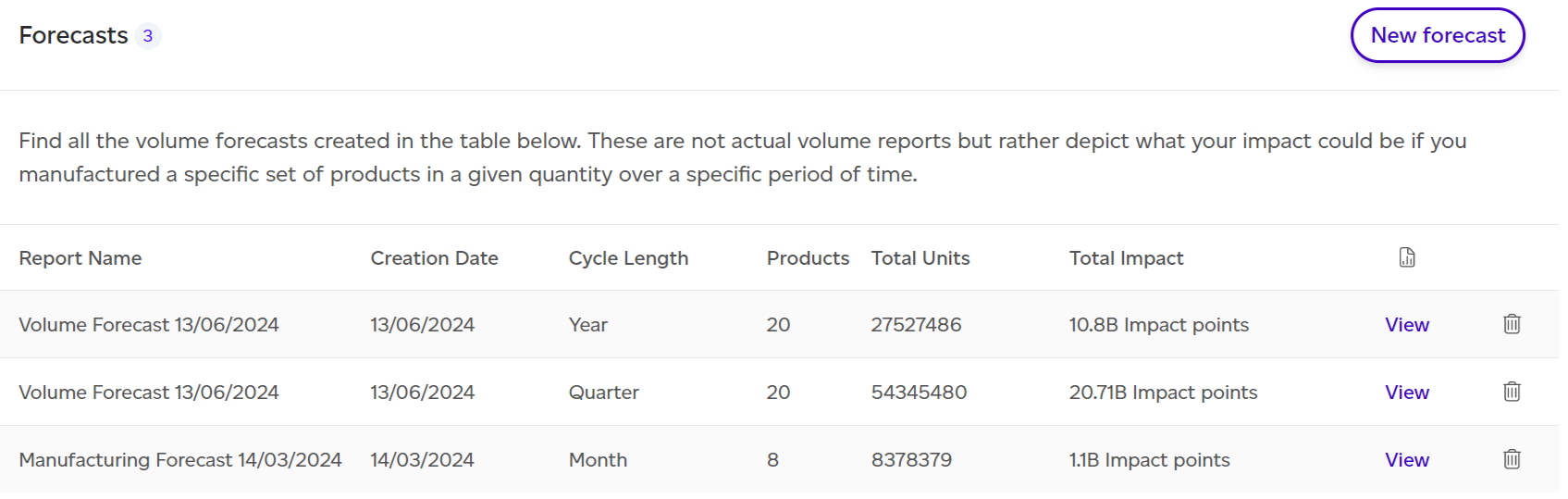
Open Performance > Volume in the left rail, which opens your forecasts, to view all available forecasts. Click 'View' next to a report to open it.
Dashboard Overview
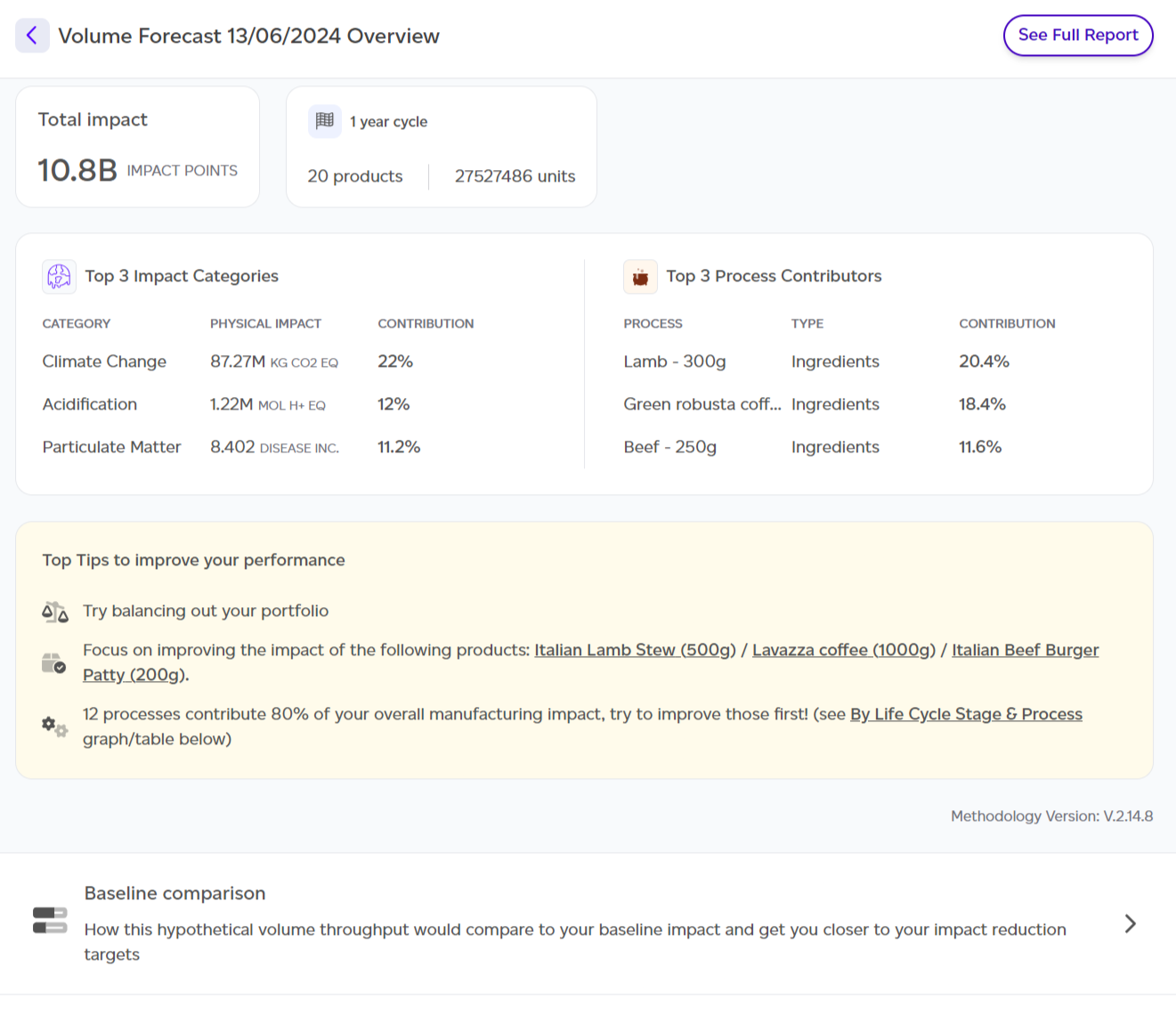
When opening a report, you land on the PEF dashboard. Forecasts also open in the GHG, Risk and Data quality lenses: choose one in the lens menu at the top right, where your plan includes it. The dashboard summarises key insights:
- Total environmental impact of manufacturing output.
- Manufacturing output overview: Product SKUs, total units, and assessment cycle length.
- Top 3 impact categories and processes.
- Top 3 tips for improving manufacturing output scores.
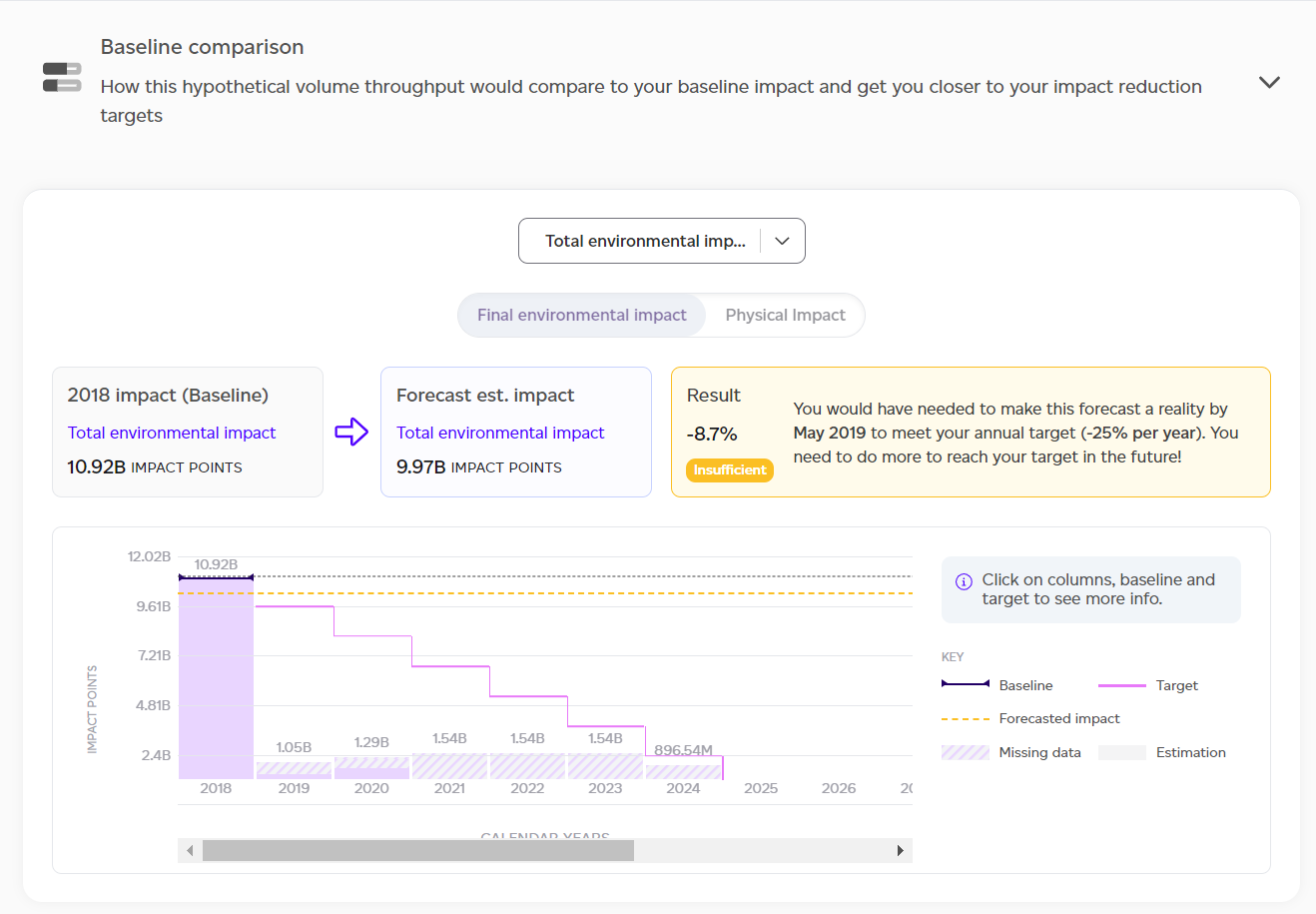
- Baseline comparison: Forecasted impact versus baseline.
- Impact difference with baseline: Graph showing historical data, forecasts, and target achievement dates.
- Worst offenders: Products with highest environmental impact.
- Product contribution to total environmental impact.
- Highest and lowest impact products.
- Breakdown by impact category.
- Impact analysis results summary by category, life cycle stage, and process.
- Major contributors summary.
- Contextual examples: Physical outputs translated into relatable terms (e.g., car journeys, showers).
Full Report Sections
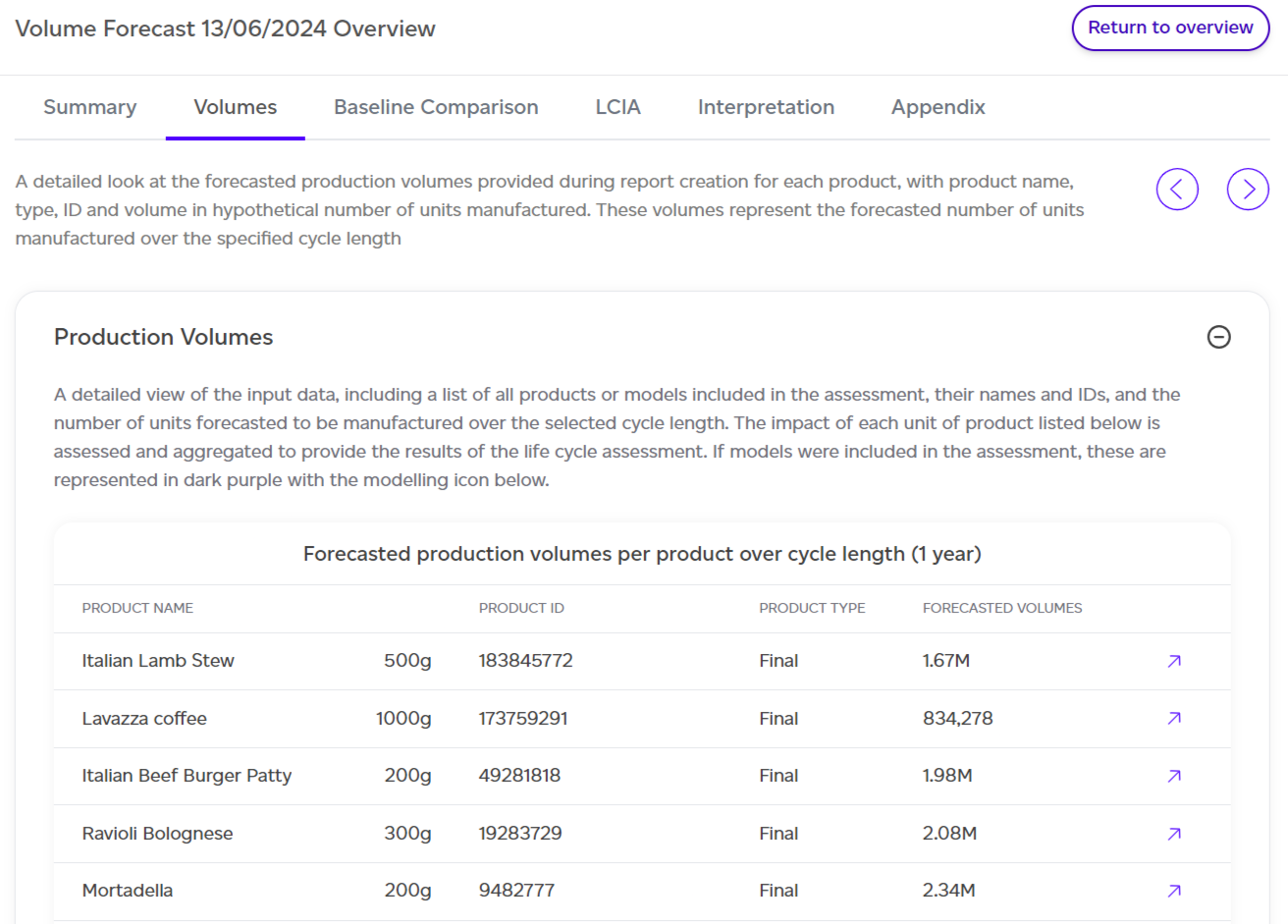
Access the full report by clicking 'See Full Report' at the top. It includes:
- Summary: Overview of products, units, and total impact.
- Volumes: Expected production volumes used in the forecast.
- Baseline comparison: How forecasted volumes align with reduction targets.
- LCIA (Life Cycle Impact Assessment): Results split by product, category, life cycle stage, and process.
- Interpretation: Contextual examples translating impact data.
- Appendix: Four detailed breakdowns covering products, impact categories, normalisation factors, and contextual example assumptions.
Data in tables can be exported as CSV using the 'Export as CSV' option. Products CSV, at the top of the report and beside the Volumes table, lists the products the forecast included, with their SKU, units and net amount per unit.
Co-products and circularity
Each co-product is counted once. Each product shows its own share; a co-product's share, by mass at the step it leaves, is on its own line, less what the report's products use as an ingredient, since they carry that part. A by-product takes no share. The report lists its co-products and by-products with what is counted on each. See Co-products and by-products.
Where the report's products use co-products or residues, a Circularity section after the product rankings (and after the breakdown in the full report's LCIA tab) gives the share of input mass from them and the impact they avoid compared with the conventional ingredients they replace, across the portfolio, with the top products using them. It sits beside the totals and is never subtracted from them. See Circular ingredients: co-products and residues.
Where the impact concentrates
On Risk & Analytics plans, Where the impact concentrates traces the report's impact to its Raw materials, Countries, Suppliers, Processes and Products, at the report's volumes, for any impact category. Each list shows its share, the impact per kg and the share of primary data, and downloads as CSV. It sits on the overview and in the full report's Concentration tab.
Downloading a PDF
Download PDF at the top of each view saves it as a PDF: the PEF and GHG overviews, and the Risk and Data quality views. A cover page names the report, the view and the workspace, and on the overviews the period. All sections are opened out in the PDF. If your company has a logo, choose With [company]'s logo or Sustained only when you download. See How do I download a volume report as a PDF?