An action is something you agree with a supplier, in a meeting or from their answers: what needs doing, who owns it, on your team or at the supplier, and by when. Owners get an email, and reminders as the date comes up.
Open Registry > Actions. Global Admins, Global Super Users and LCA Experts can create and change actions; other users can read them.
Creating an action
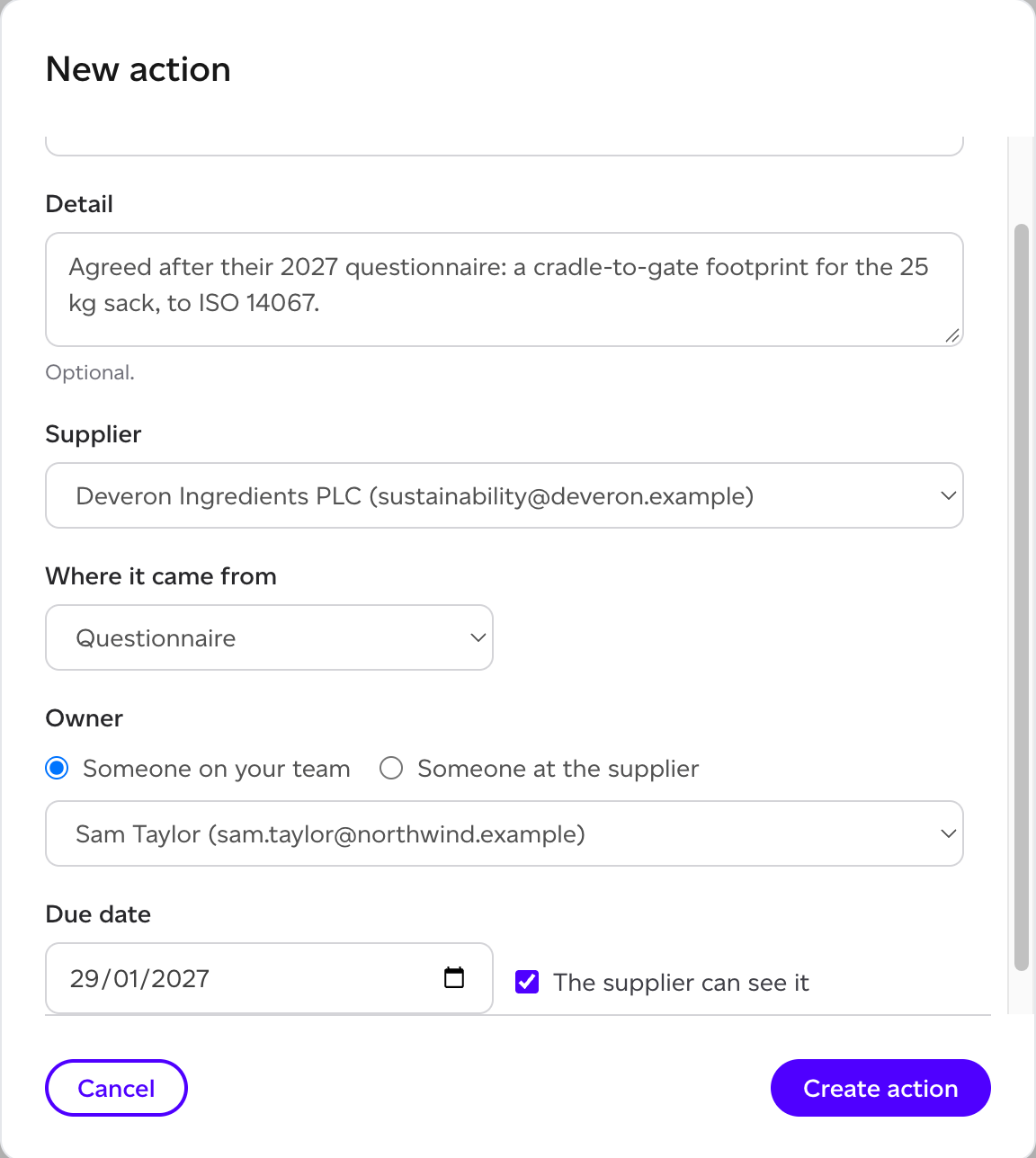
Click New action, or Create action on a questionnaire response, and fill in:
- What needs doing, and an optional Detail.
- Supplier: choose one of your suppliers, or Another supplier… to give a name and an email.
- Where it came from: Meeting, Questionnaire, Data request or Other, with an optional Meeting date.
- Owner: Someone on your team, chosen from your colleagues, or Someone at the supplier: their contact email unless you name someone else. The owner gets an email about it.
- Due date.
- The supplier can see it: tick it to show the action to the supplier.
Click Create action.
Keeping actions moving
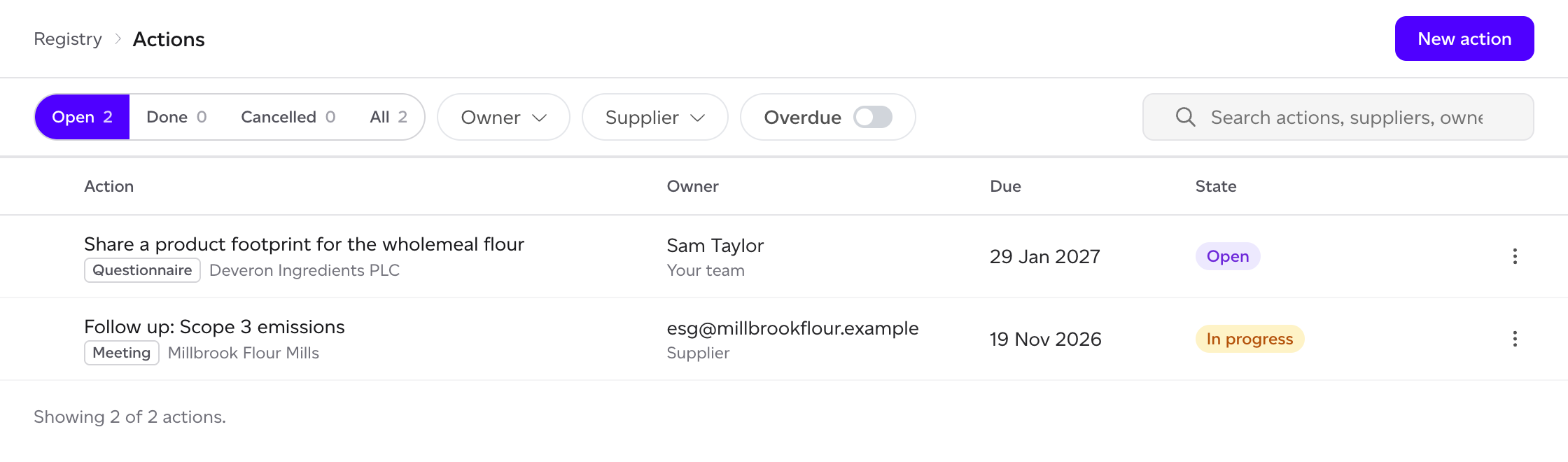
The list shows Open, Done, Cancelled or All actions, with filters for the Owner (your team, suppliers, or one person) and the Supplier, an Overdue switch and a search. A row's menu moves an action on: Mark in progress, Mark done, Cancel action or Reopen, and Edit changes it.
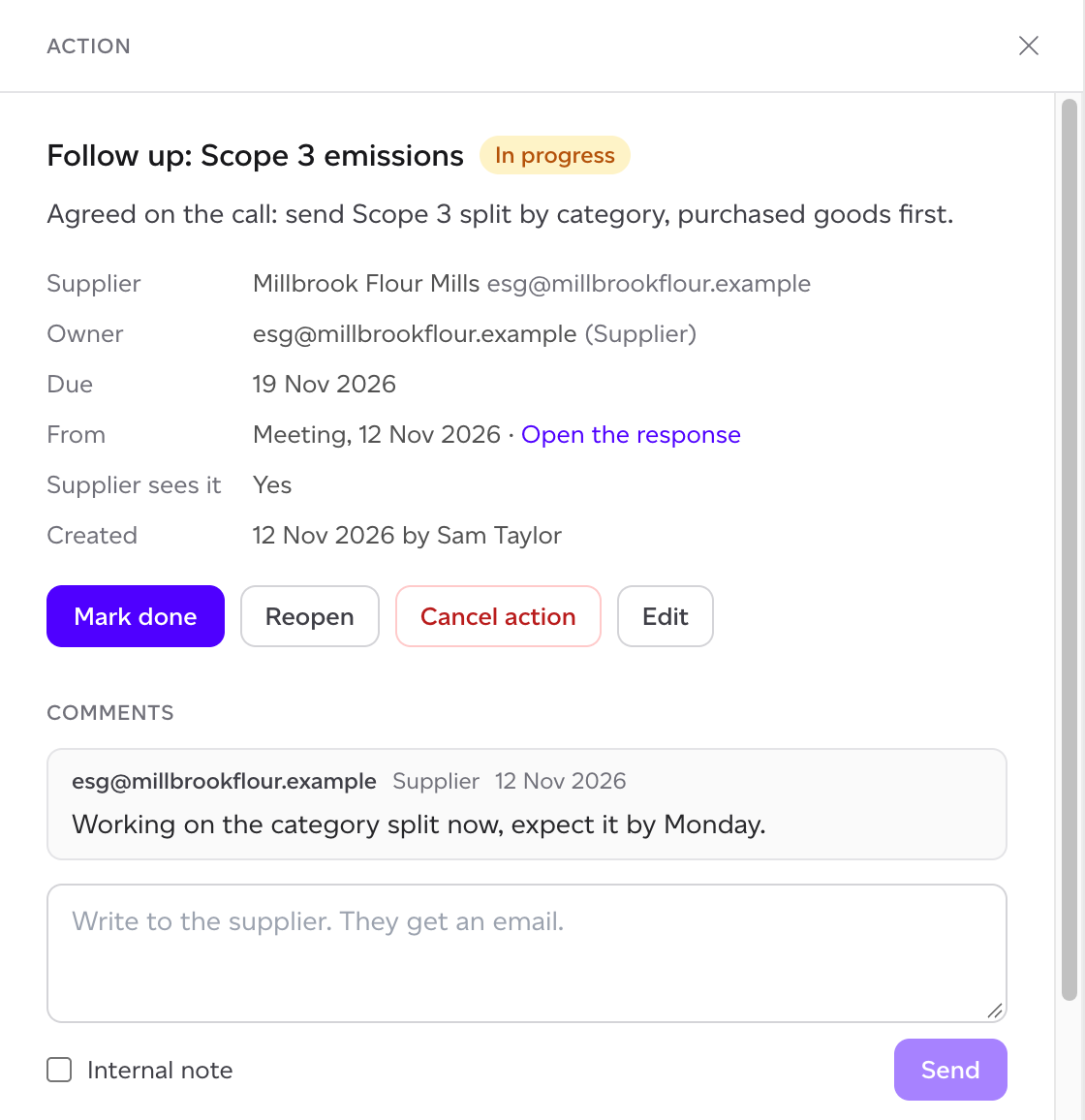
Click a row to open it: the supplier, owner, due date, where it came from (Open the response for one created from a questionnaire), whether the supplier sees it, its History and its comments.
An action's owner is emailed 3 days before the due date, on the due date, and while it is overdue.
Comments
A questionnaire response and an action each carry a Comments thread between you and the supplier. Send writes to the supplier, who gets an email. Tick Internal note and click Add note for a note for your team: the supplier does not see it.