A supplier questionnaire asks a supplier about their company rather than one item: governance, transition plans, Scope 1 to 3 emissions, targets and SBTi, energy and activity data, how they footprint their products, projects, barriers and documents. A campaign sends one questionnaire to many suppliers for a period, with a due date and reminders, and you review each response as it comes in.
Questionnaires come with the Supplier engagement add-on. Open Registry > Questionnaires: it has two lists, Campaigns and Templates. Global Admins, Global Super Users and LCA Experts can build templates and run campaigns; other users can read them.
Templates
A template holds the questions a campaign sends. Two are built in:
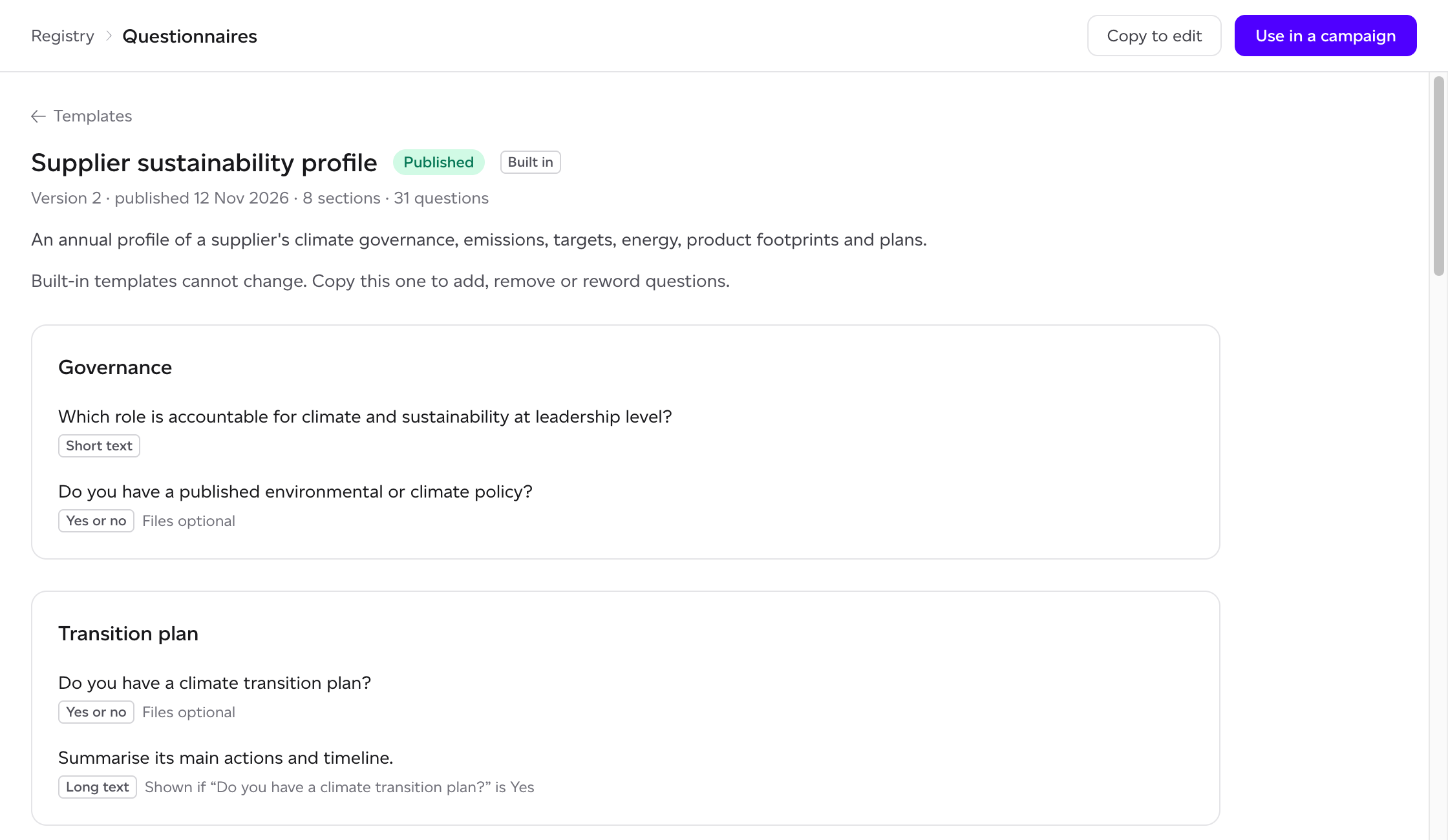
- Supplier sustainability profile: an annual profile of a supplier's climate governance, emissions, targets, energy, product footprints and plans.
- Activity data for footprinting: what is needed to footprint a supplier's items when they have no footprint of their own: site, energy, recipes, packaging and waste.
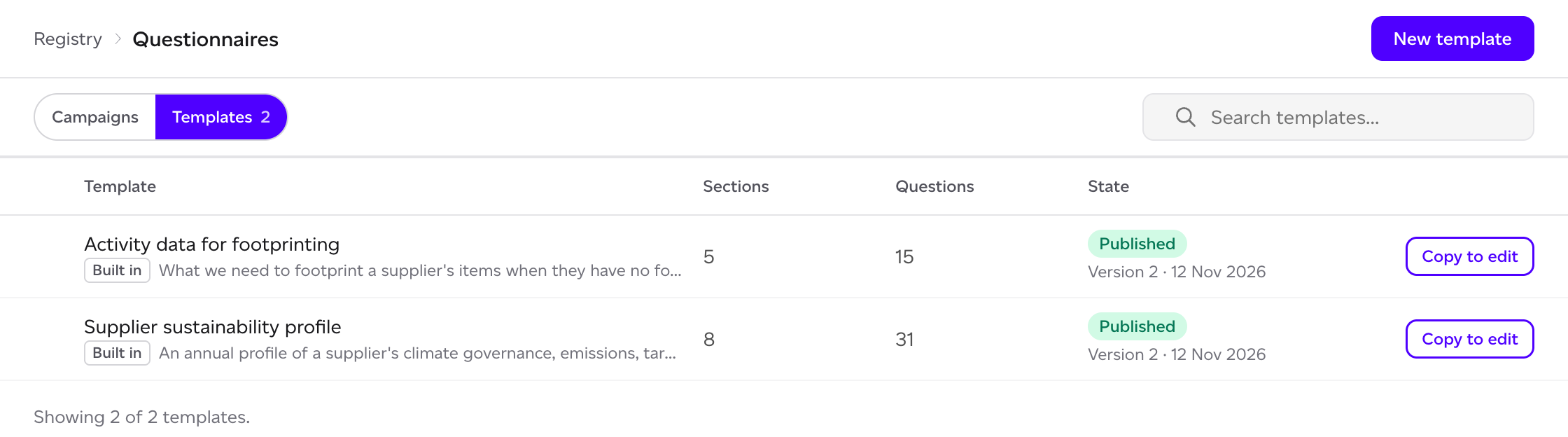
A built-in template cannot change. Copy to edit makes a copy of your own, as a draft of version 1. Question ids stay the same, so answers carry across when you repeat a campaign. To start from nothing, click New template on the Templates list.
In the editor, give the template a Name and, if you like, a Description (suppliers do not see it). Add sections with Add section, each with a title and an optional introduction, and questions with Add question. For each question:
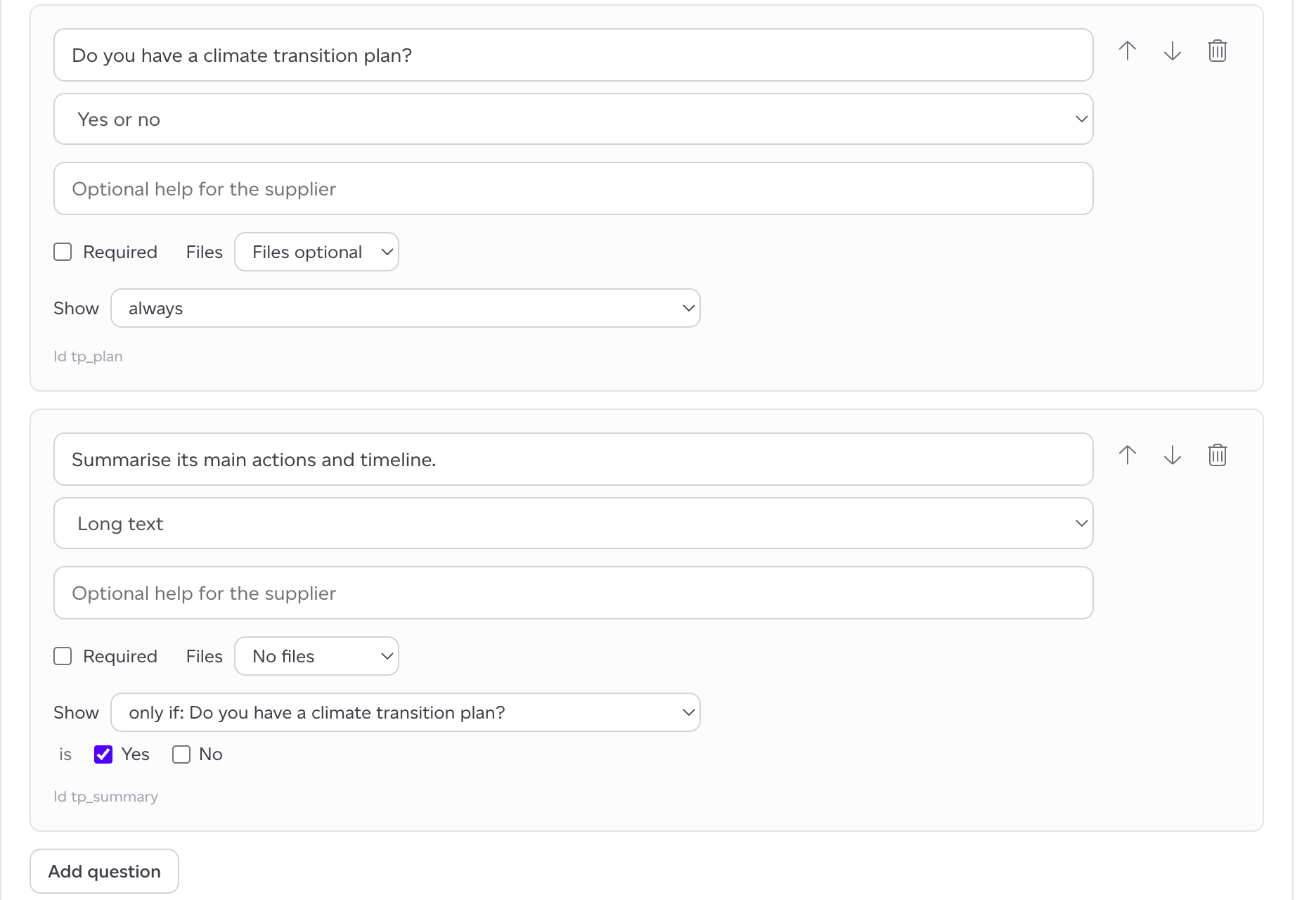
- Question, and optional Help text for the supplier.
- Answer type: Yes or no, One choice, Several choices, Number, Short text, Long text, Date or File upload. A number can take a Unit (such as MWh) and a Lowest and Highest value; a choice takes its Options.
- Required, and Supporting files: No files, Files optional or Files required.
- Show: always, or only if an earlier yes or no, or choice, question is answered with the options you tick. A question hidden by its condition is left out of the supplier's form.
A template holds up to 20 sections and 200 questions. Save keeps your draft. Publish fixes the version: campaigns use it as it is. To change a published template later, click New version. Archive this template takes it off the list; campaigns that use it keep working.
Starting a campaign
Click New campaign on the Campaigns list, or Use in a campaign on a published template, and fill in:
- Name, such as Supplier climate survey 2026.
- Template: only published versions can be sent, and the campaign keeps the version it was sent with.
- Period: what the answers cover, such as 2026.
- Due date.
- Message (optional): shown in the email and at the top of the form.
- Recipients: pick from your suppliers that have a contact email, or type other addresses under Other addresses, one per line, as name@company.com or Company <name@company.com>.
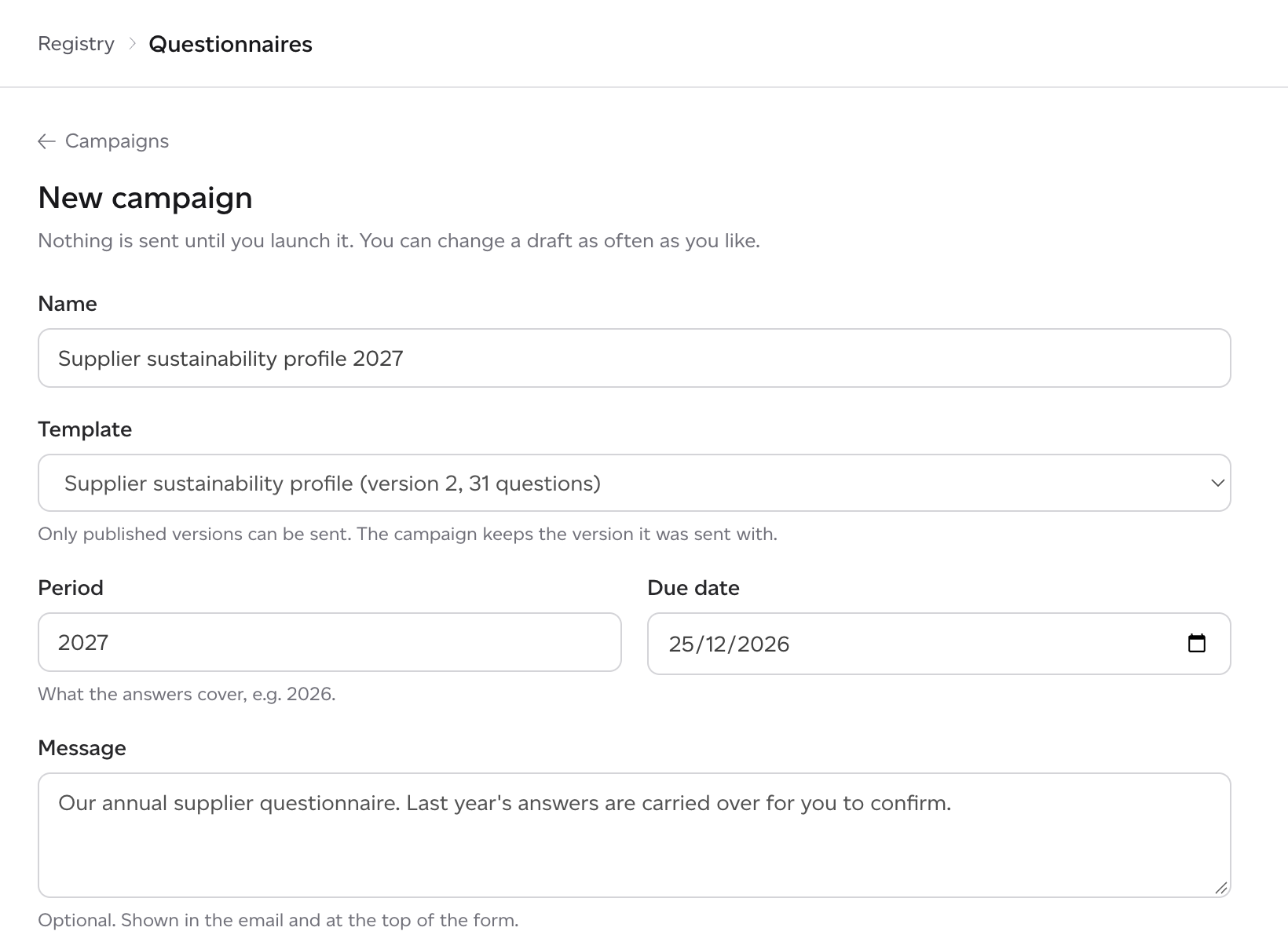
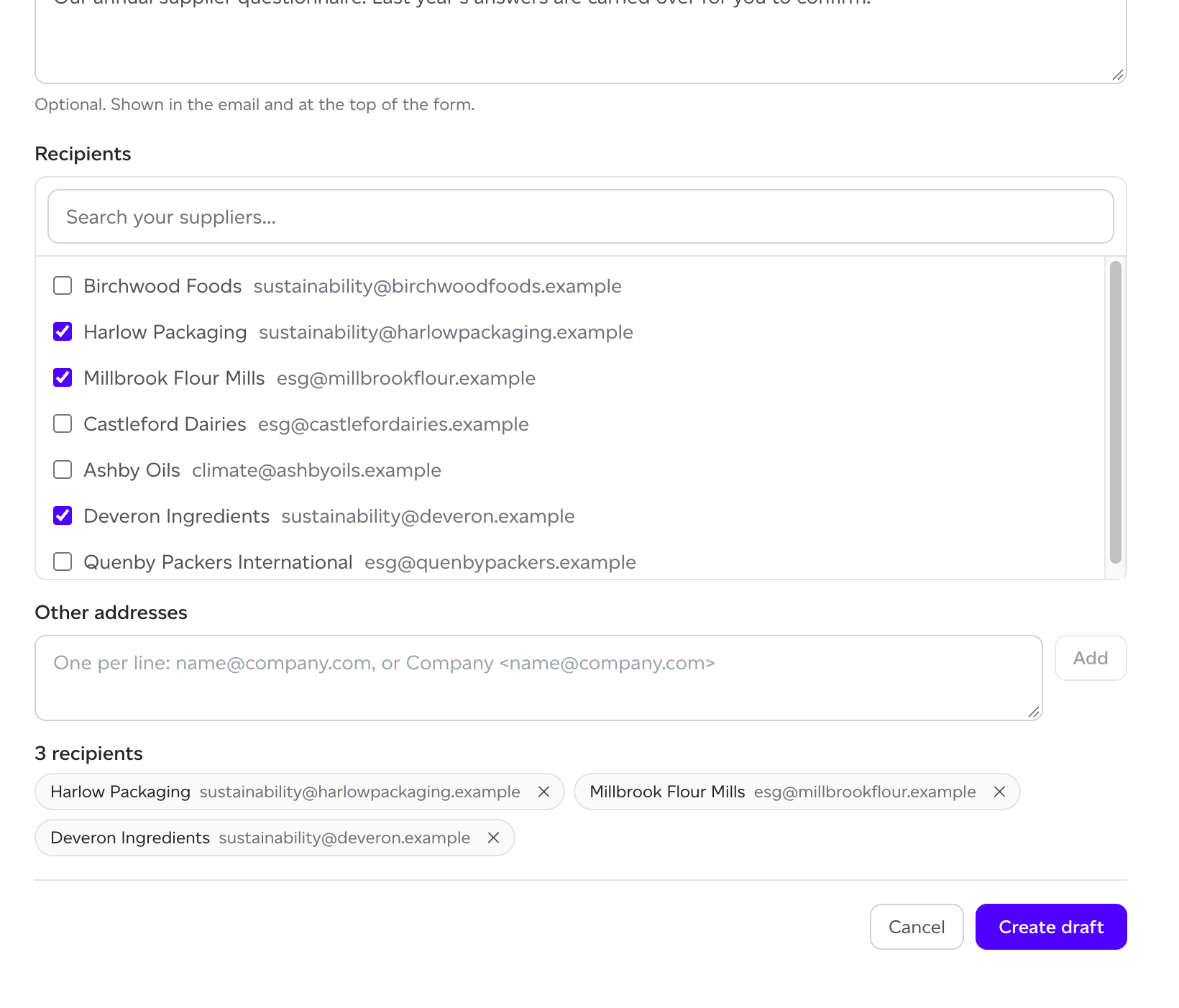
Click Create draft. Nothing is sent until you launch it, and you can change a draft as often as you like with Edit and Add recipients. When it is ready, click Launch, then Launch and send: each supplier gets an email with a link to the questionnaire. After launch the template and the due date are fixed. While a campaign is open, Add recipients sends to each new supplier at once.
Following a campaign
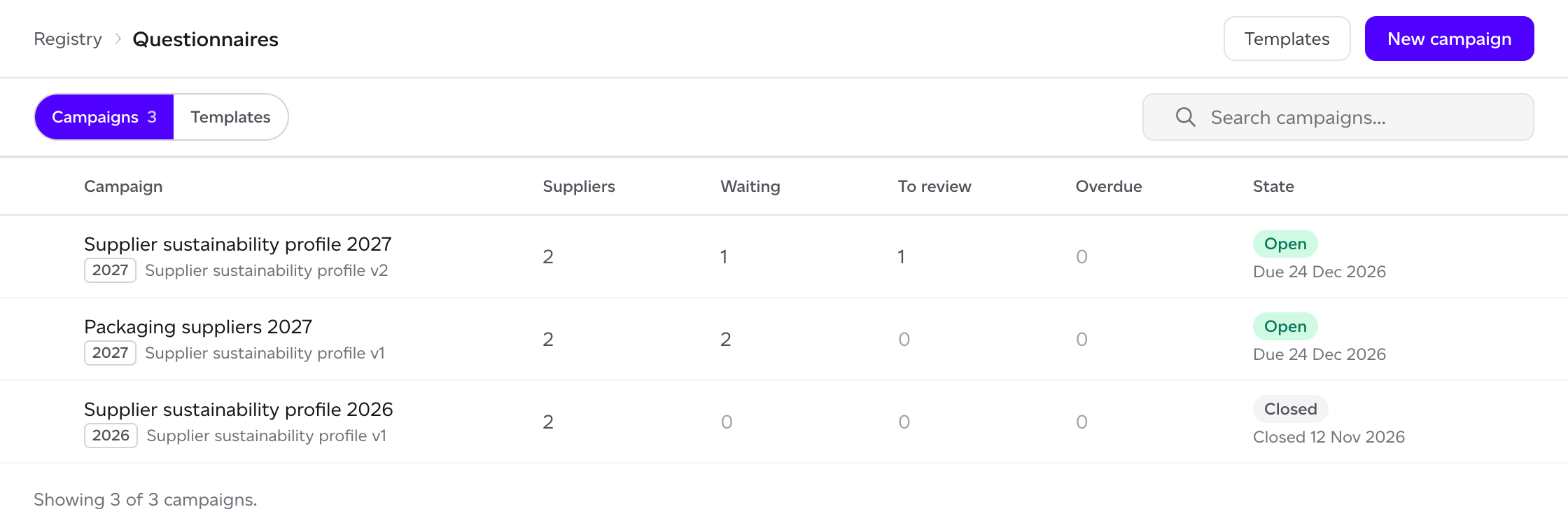
The Campaigns list counts, for each campaign, its Suppliers, how many you are Waiting on, how many are To review and how many are Overdue. Open a campaign to see each supplier's State (Not sent, Sent, Opened, In progress, To review, Returned, Accepted, Declined, Revoked or Expired), how many required questions they have answered, the due date and the maturity you gave them.
Suppliers are reminded by email 14 days and 3 days before the due date, and 3 days after it if they have not submitted. To remind one now, choose Remind in their row's menu. Revoke stops a supplier's link working.
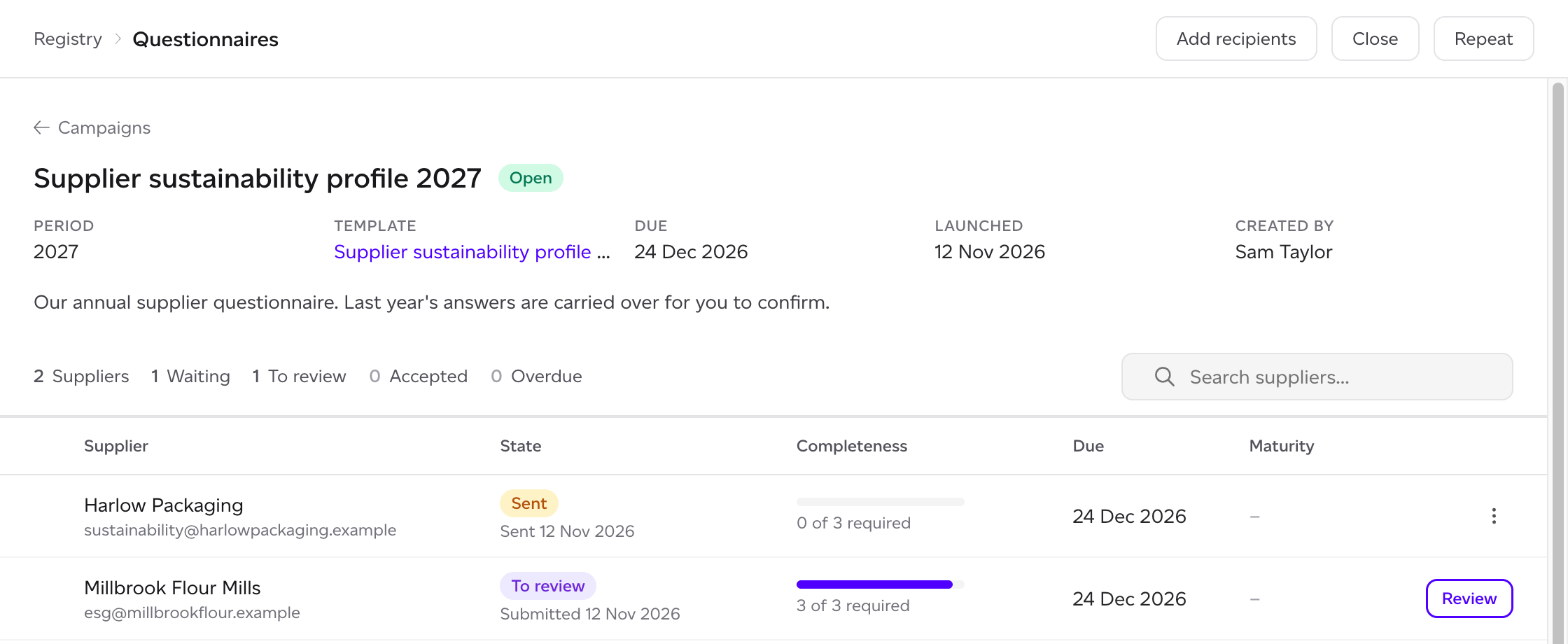
Close ends the campaign: suppliers who have not submitted can no longer answer, and answers already submitted stay open for your review.
Reviewing a response
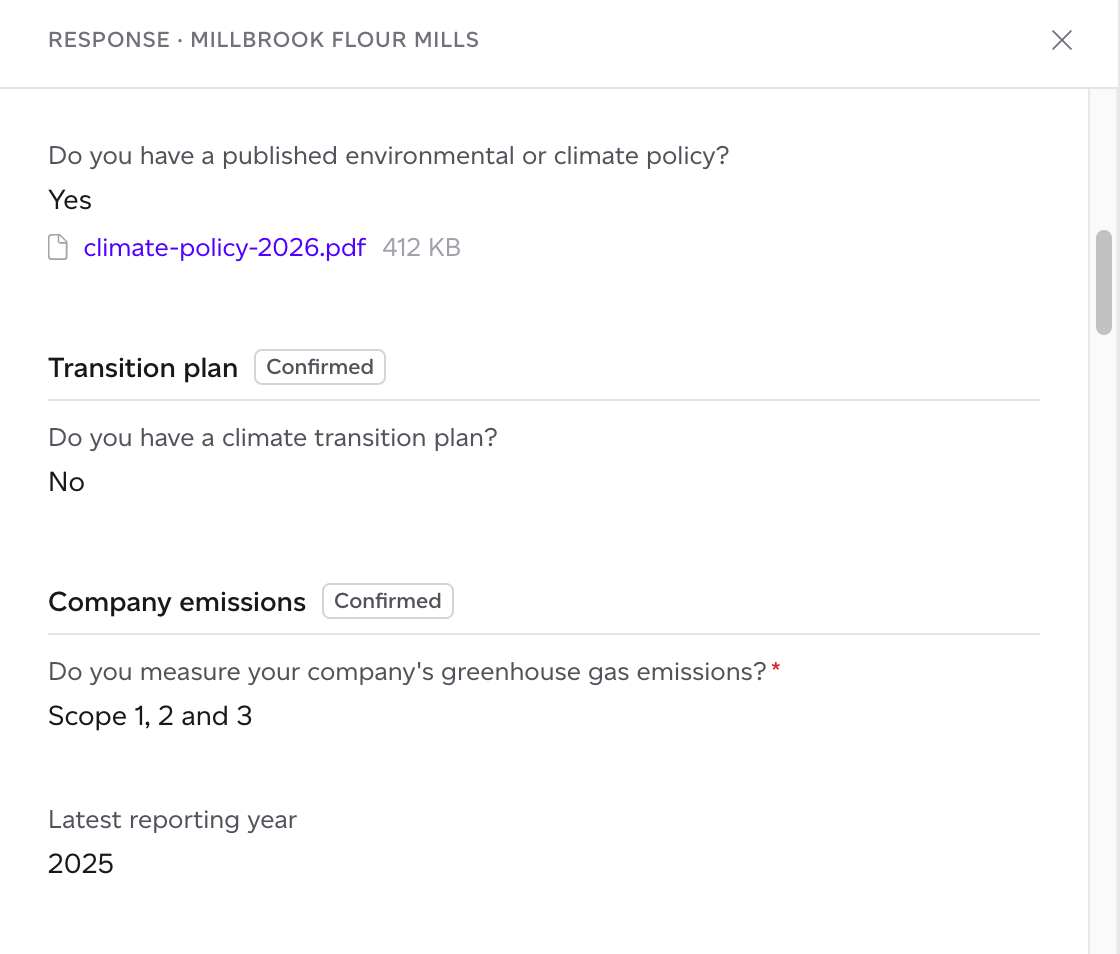
Click a supplier's row, or Review on one that is To review. The response shows their answers by section, with the files they attached to download, and a supplier who declined gives their reason.
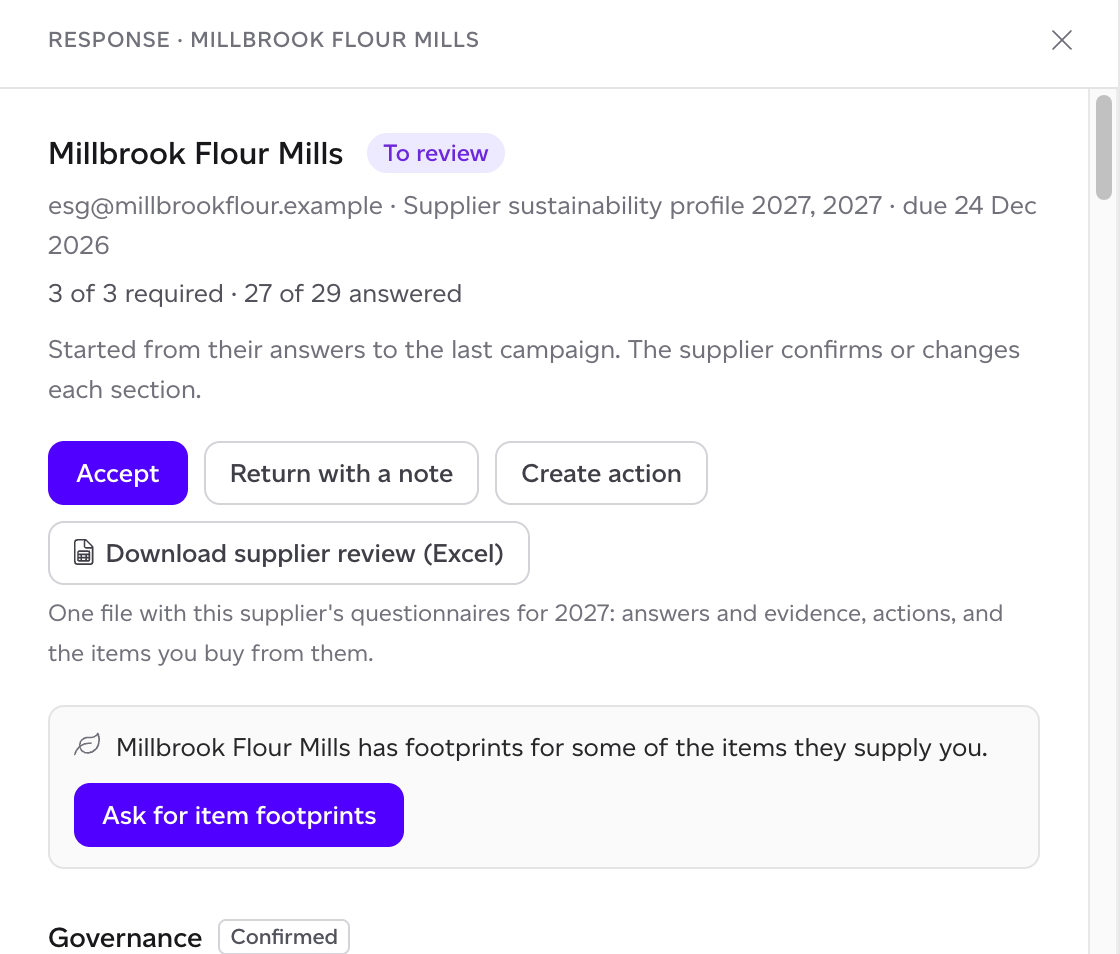
- Accept: optionally give a Maturity (Starting, Developing, Established or Leading; for your team only, the supplier does not see it) and a Note. The supplier gets a thank-you email. You can change the maturity later.
- Return with a note: the supplier can change their answers and submit again, and gets your note by email.
- Change history: every saved change to an answer, by your team or by the supplier, and what was carried over from the last cycle.
- Create action, or Create action on this answer: record what you agree to do next. See How do I track actions agreed with a supplier?
- Comments: write to the supplier, or add an internal note they never see.
When a supplier answers that they have footprints for the items they supply you, the response says how many, with Ask for item footprints to ask for them item by item. This needs the supplier's email to be on one of your suppliers. See How do I ask a supplier for data?
The supplier review workbook
Download supplier review (Excel) on a response gives one file with this supplier's questionnaires for the period: a summary, their answers with the evidence files and each file's SHA-256 hash, the actions agreed with them, the items you buy from them with their figures from your PCF dataset, and the change history. Use it to prepare a supplier review meeting or to keep on file.
Repeating a campaign next cycle
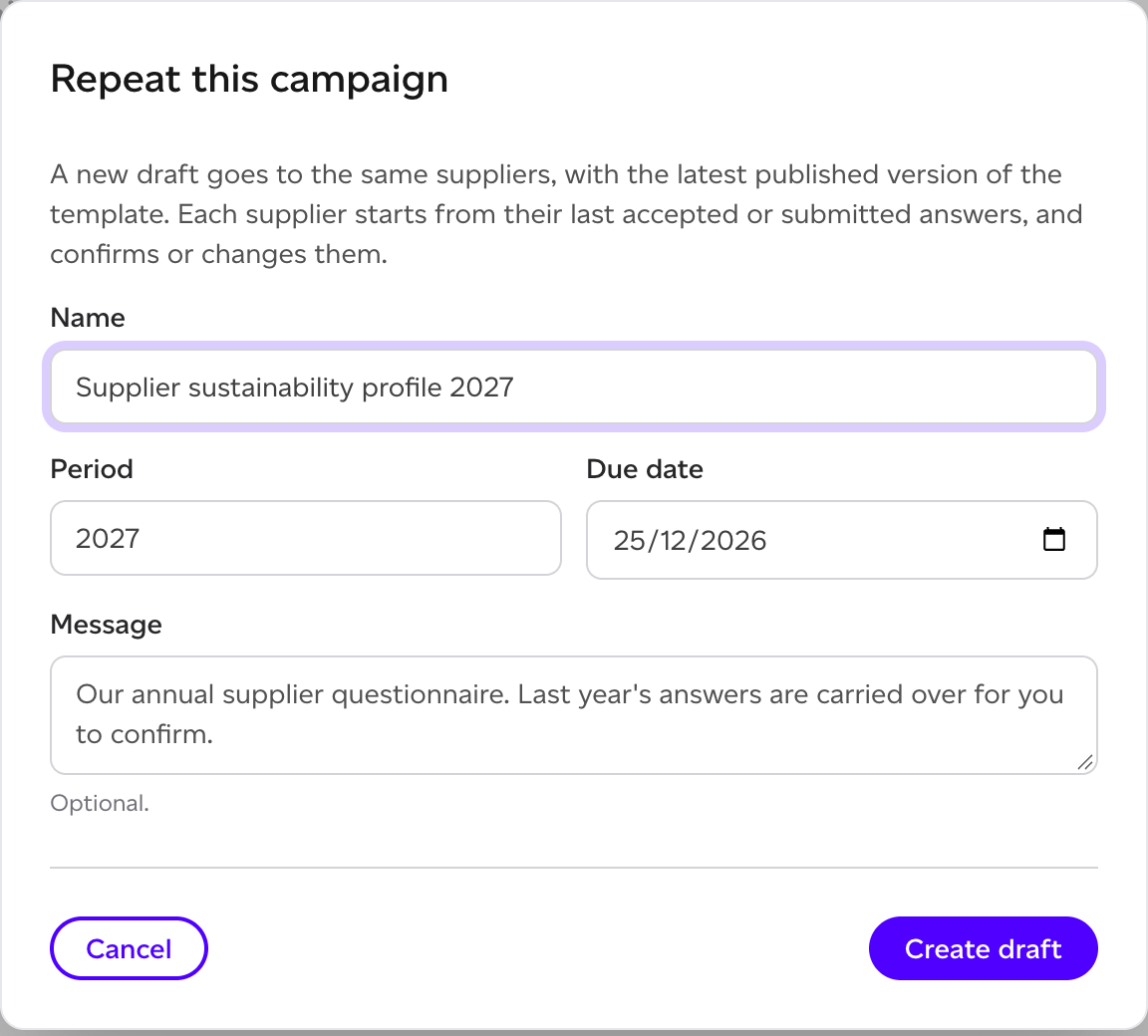
Click Repeat on a launched campaign, give the new campaign its Name, Period, Due date and an optional Message, and click Create draft. The new draft goes to the same suppliers, with the latest published version of the template. Each supplier starts from their last accepted or submitted answers, and confirms or changes them section by section. Until they do, those answers read Prefilled and the section reads From last cycle, not confirmed.