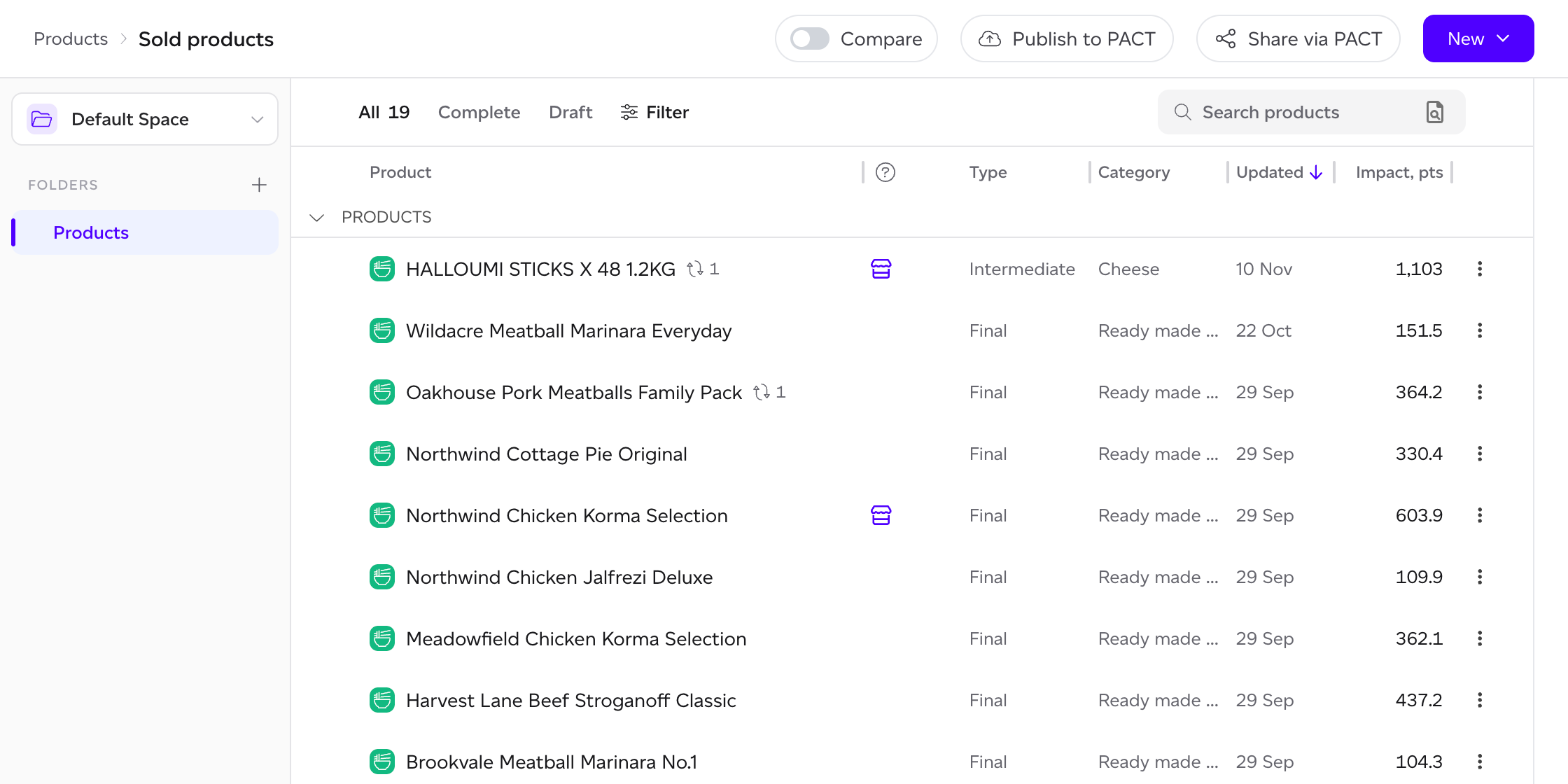
In Products > Sold products and Products > Internal products, each product takes one line: its name, then any icons, its type and category (or, on Internal products, its manufacturer and where it is used), when it was last updated and its impact in points.
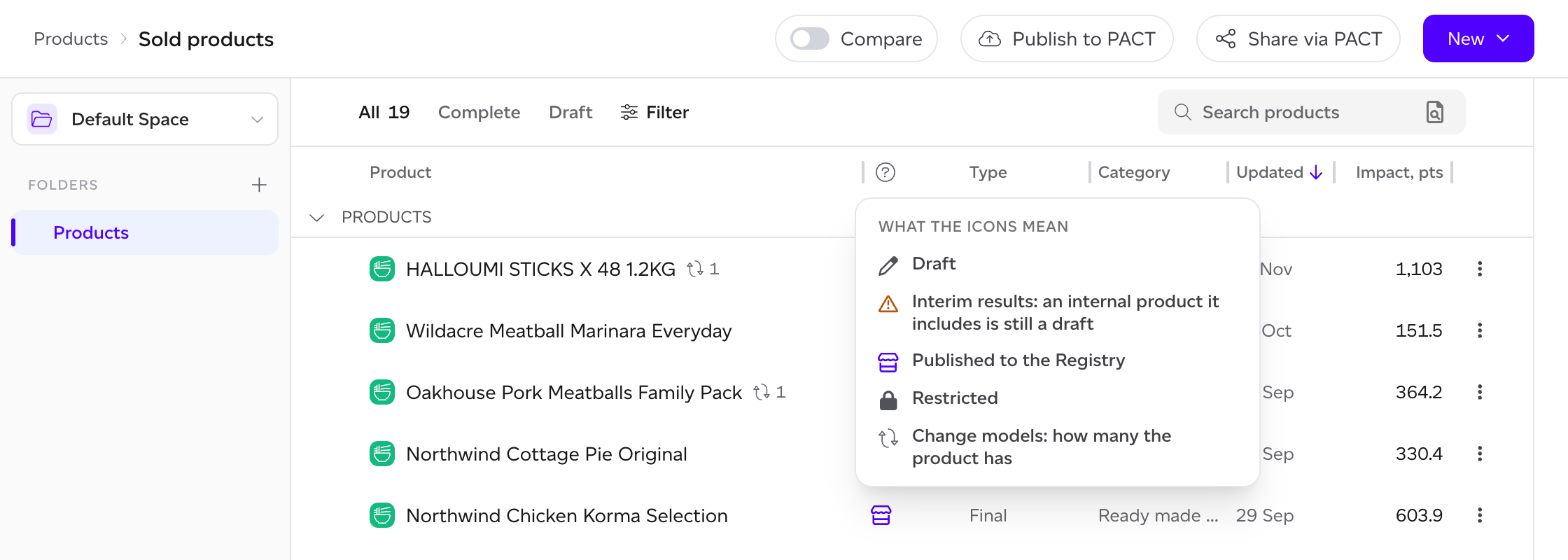
Icons after the name
An icon after a product's name says something about it: it is a draft, its results are interim because an internal product it includes is still a draft, it is published to the Sustained Registry, or it is restricted. A turned-arrows icon with a number is how many change models it has. Click the ? above the icons for what each one means.
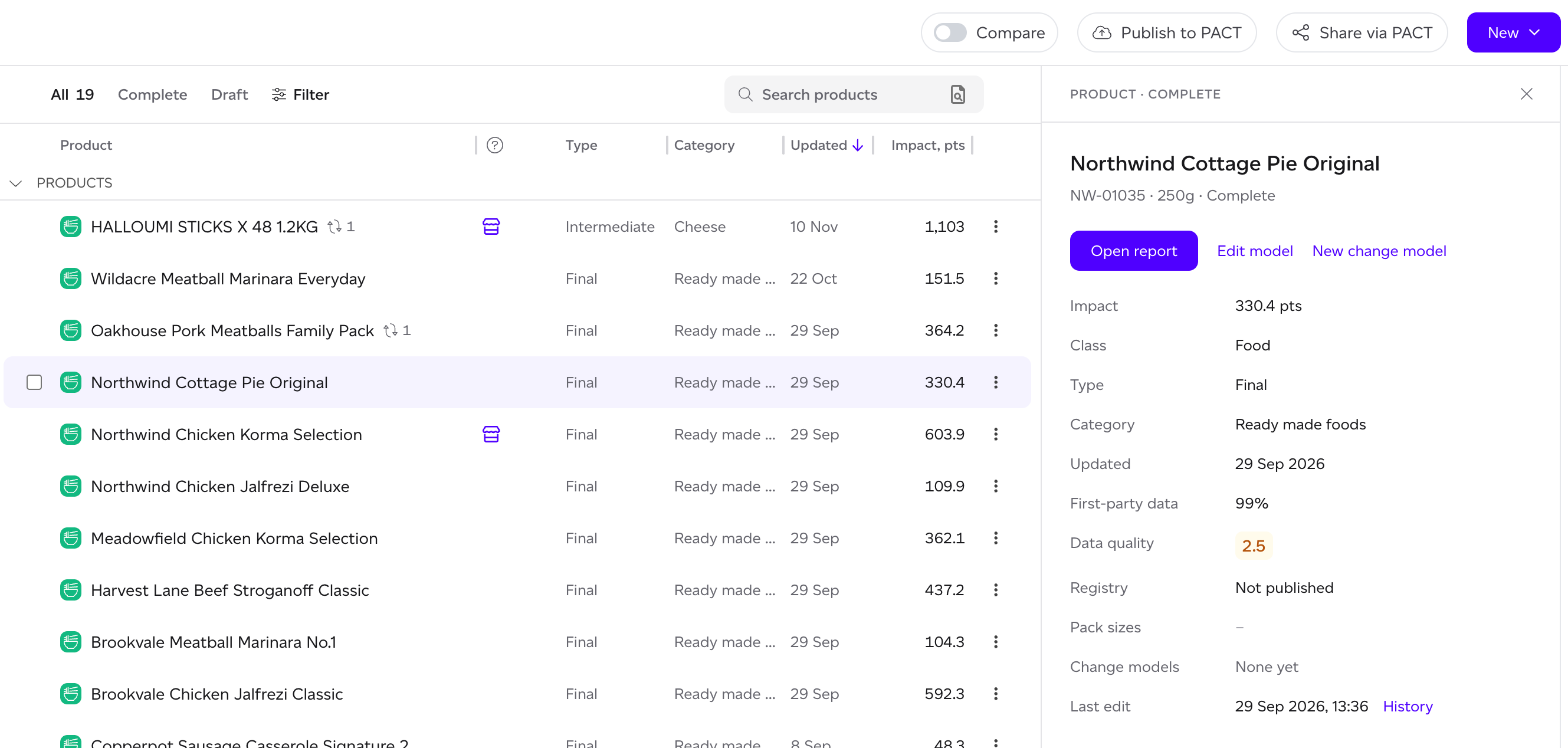
The product panel
Click a product to open its panel beside the list. It shows the product's impact, class, type, category, first-party data, data quality, pack sizes, change models and when it was last edited, with:
- Open report, for a complete product, or for a draft whose report can already be calculated.
- Edit model (Continue editing on a draft) and New change model, where you can make them.
- History, to see and restore earlier versions.
An internal product's panel also says where it is Used in.
The ⋮ menu at the end of each row holds the product's other actions, such as Duplicate, Add pack size, Move and Delete.
Views, filters and search
- All, Complete and Draft above the list choose which products it shows; the active one says how many.
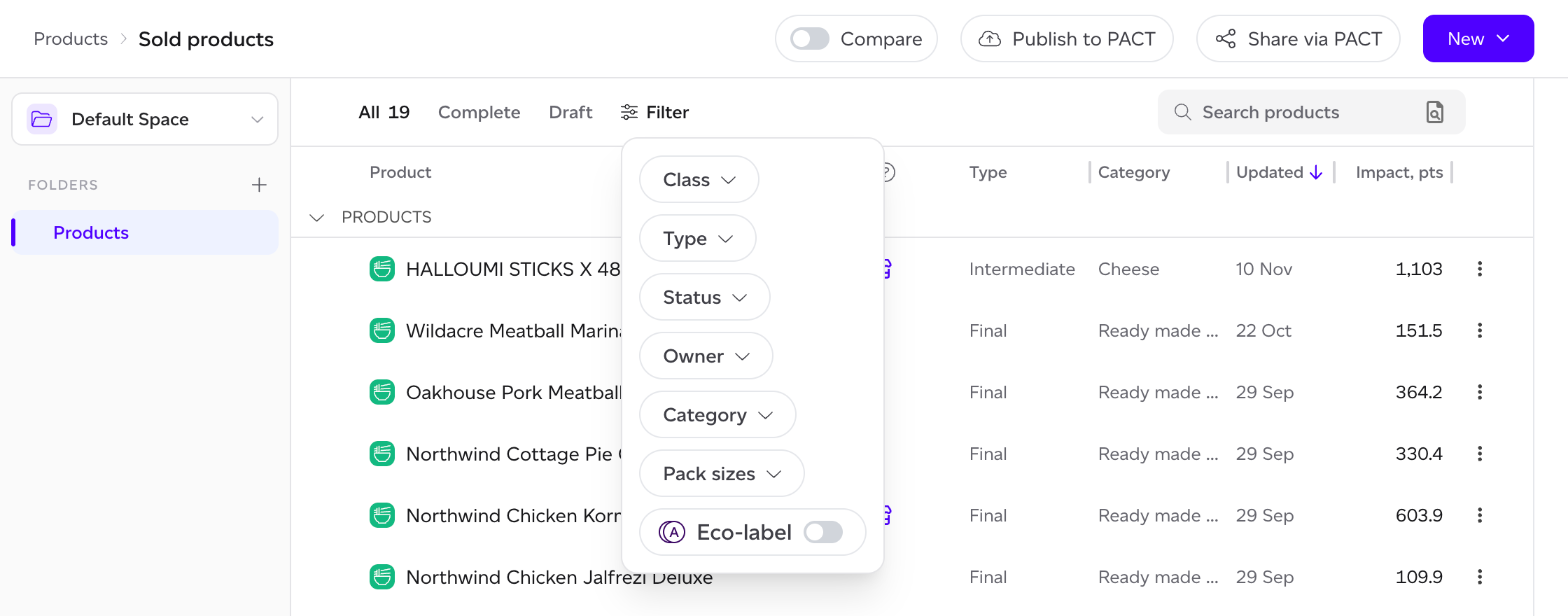
- Filter holds the other filters: Class, Type, Status, Owner, Category, Pack sizes and Eco-label.
- Search by name, or upload a list of names or IDs from the icon in the search box.
- New, Compare and the PACT actions sit in the top bar.
Resizing the columns
Drag the edge of a column heading to make that column wider or narrower; the other columns make room, so the list never runs off the page. Your widths are kept in this browser, for each list. Double-click an edge to go back to the standard widths.
This works on Sold products, Internal products, and in Supply chain on Raw materials, Providers & suppliers, Locations & facilities and Mappings.