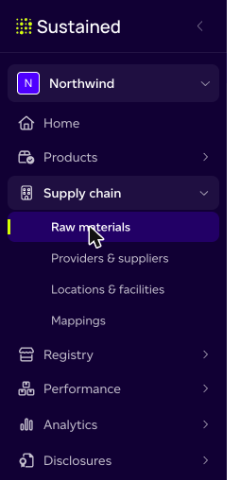
Open Supply chain > Raw materials. This is one list of what your company buys: ingredients matched to our library, purchased goods that are modelled or come from the Sustained Registry, and items you have imported from your purchasing list. It covers your whole company account, not just the active workspace.
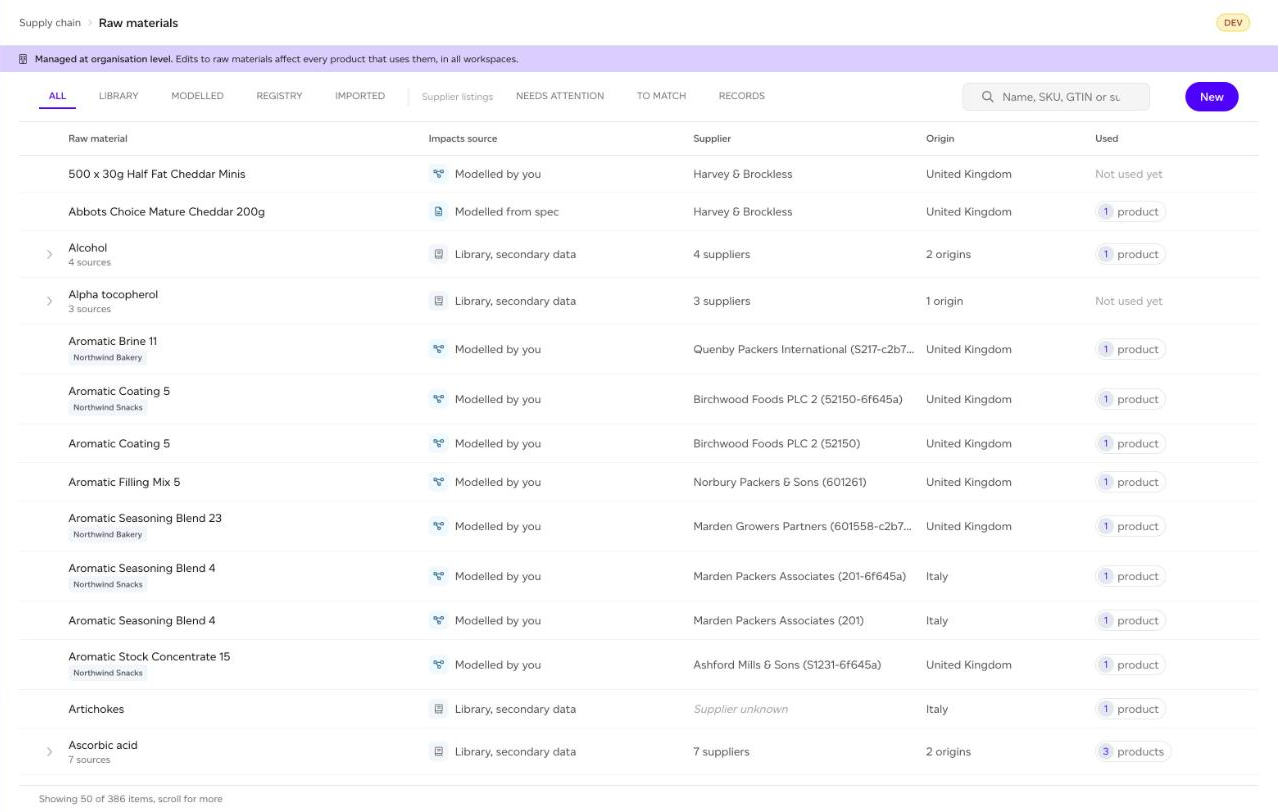
Purchased goods used to have their own page. They are now rows in this list, so Supply chain no longer shows a separate Purchased goods entry. If your account does not include Raw Materials, you keep Supply chain > Purchased goods as before.
What a row is
A raw material is one item from one supplier and one origin: barley malt from Ashford Packers in the United Kingdom is a different raw material from the same supplier's barley malt grown elsewhere. Each one has its own impacts, so a product that splits an ingredient across two suppliers is calculated from both.
Items matched to our library are folded into one row per item. The collapsed row tells you how many sources it has, how many suppliers and origins, and how many products use any of them. Click the arrow to expand it into its sources. A purchased good, or an item with only one source, is always a row of its own.
The tabs along the top filter by where the numbers come from (All, Library, Modelled, Registry, Imported); the Imported tab also has a Category filter. The search finds a raw material by name, SKU, GTIN or supplier.
With Registry access, a second group of tabs, Supplier listings, holds what your suppliers have given you: Needs attention, To match and Records. See Supplier listings below.
Impacts source
The Impacts source column says, in words, where each raw material's numbers come from. The icon beside it gives the same answer at a glance, and a folded row shows one icon for each kind of source it holds.
| Impacts source | What it means |
|---|---|
| Library, secondary data | Our background dataset for the item. This is the starting point for everything you have not replaced. |
| Your measurement | Primary data you measured yourselves. |
| Your supplier's figure | A figure your supplier gave you, entered by your team. |
| Your farm record | Computed from activity data you recorded for your own site. |
| Registry data | Your supplier's own figures from the Sustained Registry, marked Production valid or Exploratory only. |
| Entered by hand | Primary data entered before we started asking whose figure it was. |
| Modelled from spec | A purchased good modelled by importing its specification. |
| Modelled by you | A purchased good built in the product editor, or imported from a specification before October 2026. |
| Modelled by Sustained | A purchased good imported through the product API. |
| Registry product | A supplier's complete product listing from the Sustained Registry. |
| Supplier's figure | An item you imported, carrying the figure its supplier sent. Imported items are not used in models until you bring them in (see below). |
| No data yet | An item you imported that has no figure yet: ask its supplier for data. |
Where your own data covers only part of the footprint, the label says so: , climate only or , some categories. Library data is used for the rest.
When the data record behind your figure has passed its validity year, the row shows Expired. The figure stays in use. The flag is a prompt to get an updated figure, not a downgrade.
A row marked Needs attention uses a supplier's listing that has moved: they published fresher data, its validity is running out or over, or they withdrew it. It is listed under the Needs attention tab.
The Used column shows how many products use a raw material. Click the count to see which products they are.
The raw material panel
Click a row to open its panel.
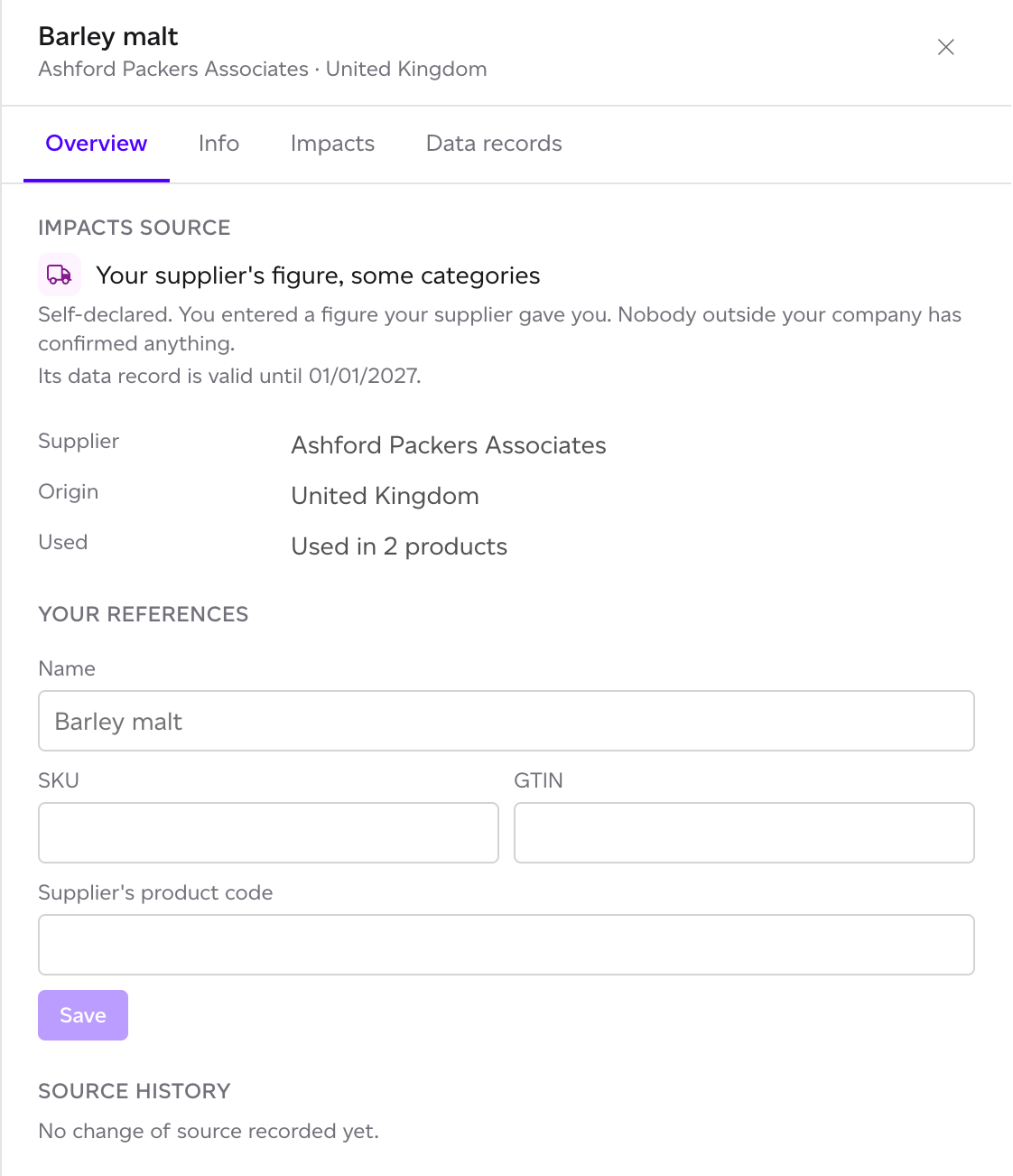
- Overview: the impacts source and what it means, the supplier (the Publisher for a registry product), the origin, how many products use it, your own references (name, purchased goods code or SKU, GTIN and the supplier's product code, which you can edit and save here) and the Source history, which records each time the source changed, when, and who changed it: imported from your file, brought into your models, kept as a record, or merged with another item. An imported item's panel has the Overview only.
- Info, Impacts and Data records (library items): details of the item, its figures for every impact category, and the data records your primary data comes from.
- Impacts (modelled goods and registry products): the good's footprint per kg, climate change first, read only. To change it, edit the good's model or, for a registry product, the listing it comes from. The Overview links to either.
Changing a raw material's impacts updates every product that uses it
You do not need to edit your products one by one. Change a raw material's impacts here, and every product that uses it is recalculated for you, in every workspace.
On a library item, open the Impacts tab. The actions are at the top of the page:
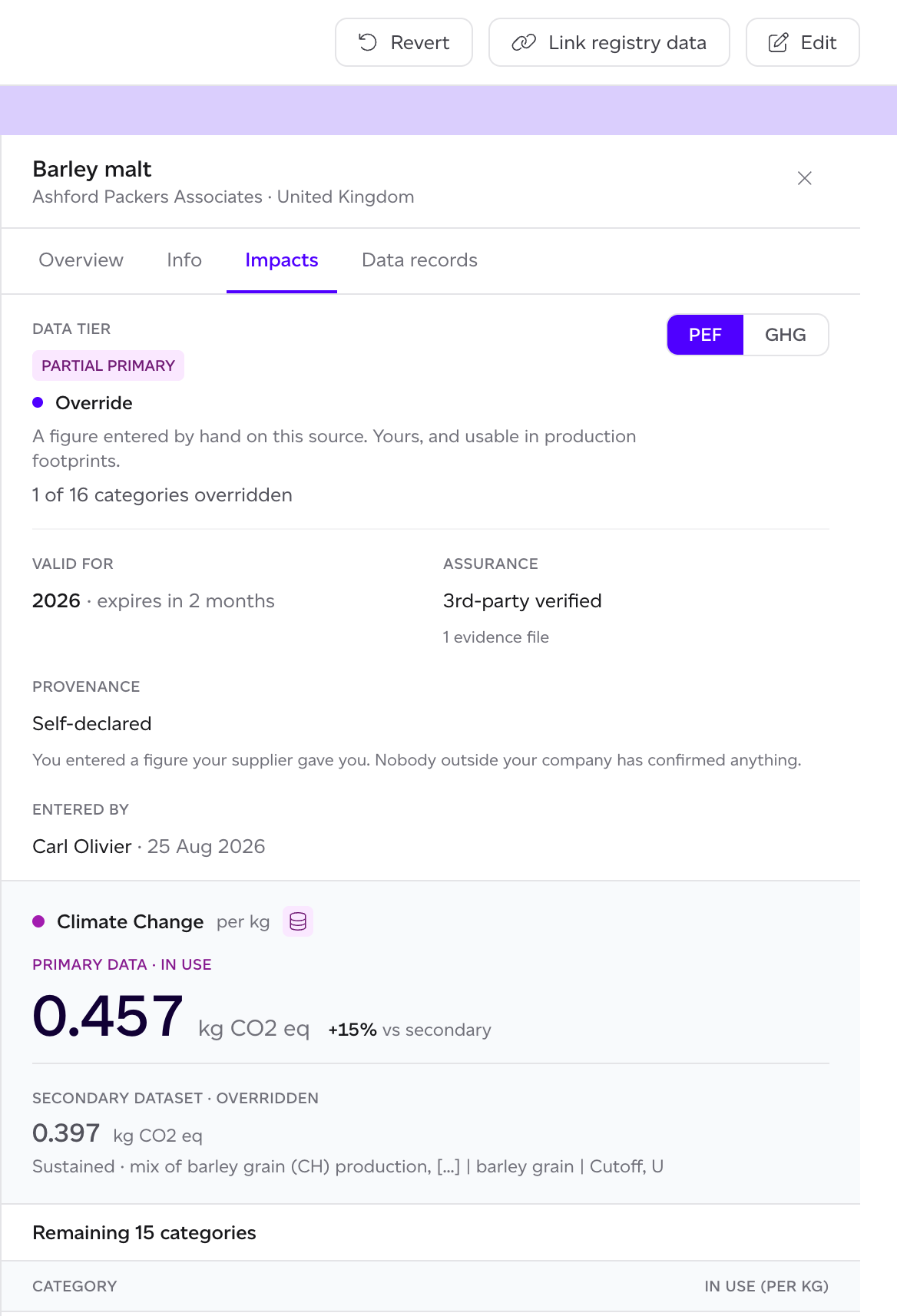
- Edit: enter your own figures for one or more impact categories. You will be asked which year they are valid for, the assurance level, and whose figure it is (yours, or your supplier's). If your supplier gave you the figure, you are offered the option to ask them to enter it themselves through the Registry instead.
- Link registry data (accounts with Registry access): use a listing a supplier has shared with you through the Sustained Registry as this source's data.
- Revert: discard your figures and go back to the library dataset.
Before anything is saved, a summary shows what changes, by how much, and how many products will be recalculated in which workspaces.
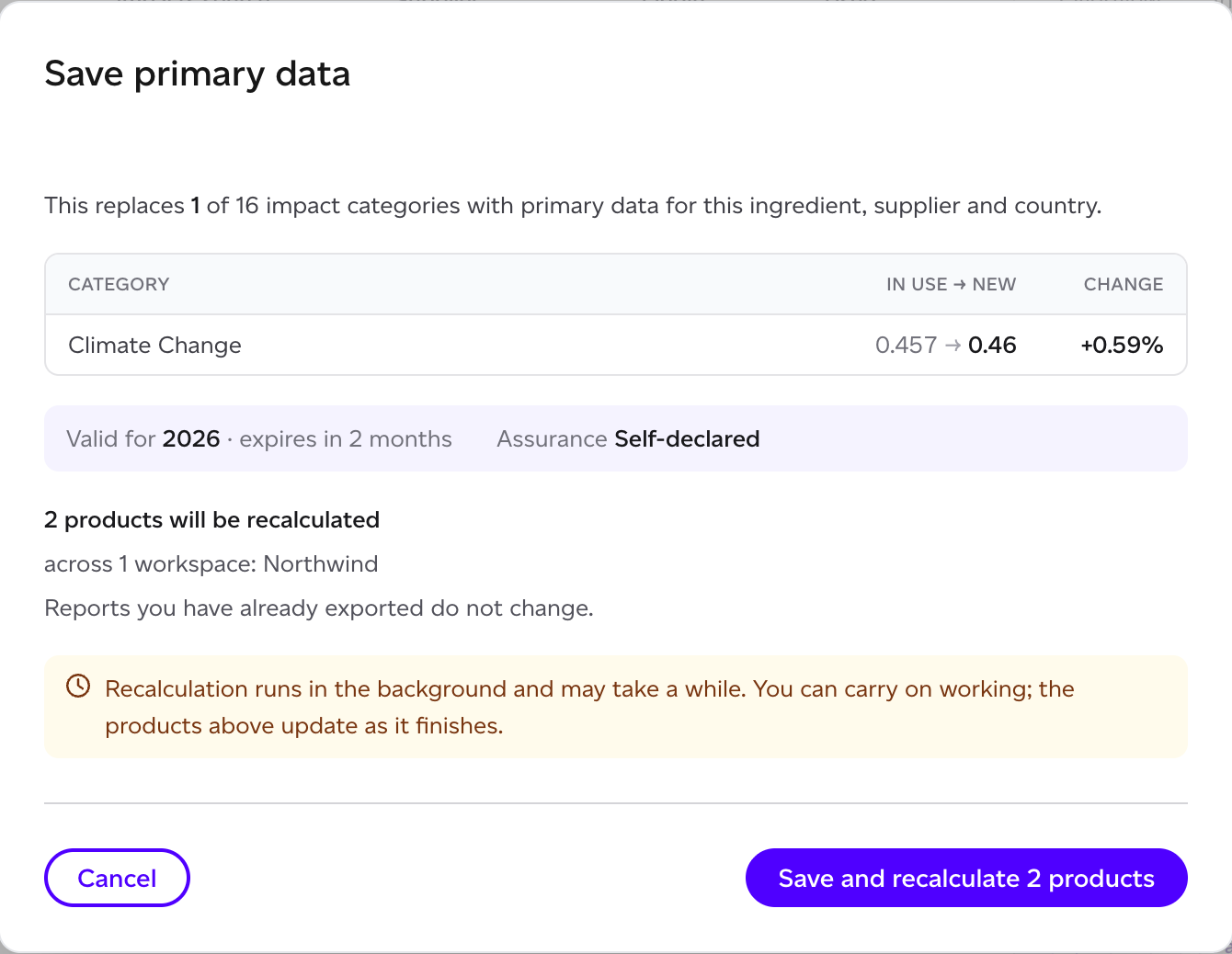
Recalculation runs in the background and may take a while. You can carry on working, and the products update as it finishes. Reports you have already exported do not change.
The same happens when a purchased good changes: when you link it to a registry listing or unlink it, when its publisher updates the listing, or when you save changes to the good's own model. Products that use the good as packaging, and change models built on those products, are recalculated too.
If Edit is greyed out, hover over it for the reason. Usually your user does not have permission to edit primary data, which a workspace administrator can grant. Primary data is entered against the PEF categories, so switch the panel to PEF if it is showing GHG.
Adding to the list
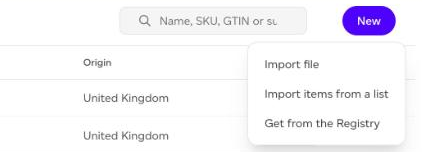
Use New at the top of the list:
- Import file: model a purchased good from its specification. See How can I extract data from product specifications with AI.
- Import items from a list (accounts with Registry access): bring in your purchasing list from a CSV. See below.
- Get from the Registry: find a supplier's product listing and bring it in as a registry product (accounts with Registry access).
Ingredients from our library do not need adding here. They appear in this list as soon as a product uses them.
Importing your purchasing list
New > Import items from a list takes a CSV with one item per row. The first row names the columns: purchased goods code (your code for the item, also read as sku), name and supplier are required; supplier email, gtin, supplier code, kind (ingredient or packaging), category and origin (a country) are optional. Other columns are ignored. Download a template gives you the headings.
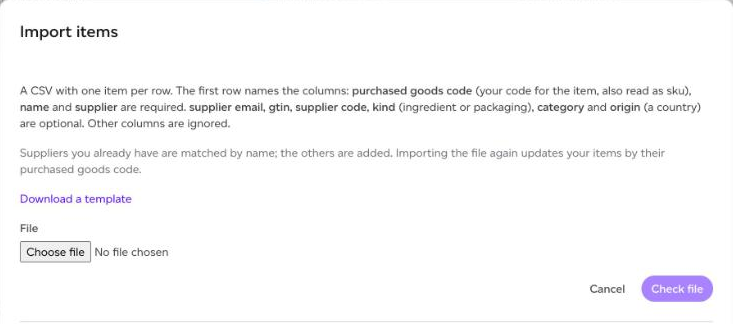
Check file shows what would happen to each row before anything is added: new items, items updated from the file, items you already have, new suppliers, and rows skipped with the reason. Rows marked in yellow need a look. Suppliers you already have are matched by name and the others are added. Importing the file again updates your items by their purchased goods code. A file can hold up to 5,000 items and 5 MB.
Imported items appear under the Imported tab. They are a record of what you buy and are not used in models yet: that is what the review below is for.
Supplier listings
The Supplier listings tabs hold everything your suppliers have given you through the Registry: answers to your requests, offers, shares, and listings you took.

- Needs attention: listings you use whose supplier published fresher data, whose validity is running out or has ended, or that are no longer available. Update takes the new figure, Ask for fresher data asks the supplier, and Find a replacement searches the Registry. Dismiss hides one until it moves again.
- To match: listings a model could use that nothing uses yet. Use on a raw material or Use as a purchased good puts one in your models; Put on a purchased good you have replaces your own figures for an existing good with the supplier's.
- Records: listings no model can take, such as a material or a non-food product, held so you can read them, download them and see when the supplier refreshes them.
Enter supplier data records figures from a document a supplier already sent you, with the document attached; only your organisation sees it, and it is marked Entered by you. Download all as CSV exports every listing you can still use. See How do I find and use supplier data?
Bringing supplier data into your models
When items you imported have supplier data that can go into your models, a banner appears at the top of the list: Bring your supplier data into your models. Review them opens the review.
Each item gets one of three outcomes:
- A purchased good with its supplier's footprint: where the supplier sent a full footprint per kilogram, the item becomes a registry product.
- A library item: otherwise, pick the closest library item (the closest match is suggested) and an origin, and the supplier's figure is kept on it as your override.
- Stays declared: packaging with only some categories, a category models do not use, or data models cannot use stay out of models under Staying out of models, as a record of what you buy.
Tick the items to bring in, then Check shows how many are ready, how many merge into an existing raw material of the same supplier and origin, and how many cannot be applied, against your plan's purchased goods allowance. Apply brings them in. If the batch would take you past your allowance, nothing is applied. Keep as a record moves an item out of the review; Bring back into the review returns it.