To begin, go to Products > Sold products, click New and choose Import file if you have a product specification document to use as a starting point. To model something you buy from a supplier as a purchased good, start from Supply chain > Raw materials and choose New > Import file instead: the good then appears in your raw materials list as Modelled from spec.
This feature leverages AI to extract information from documents like product specifications, ingredient lists, or related files. Follow these steps:
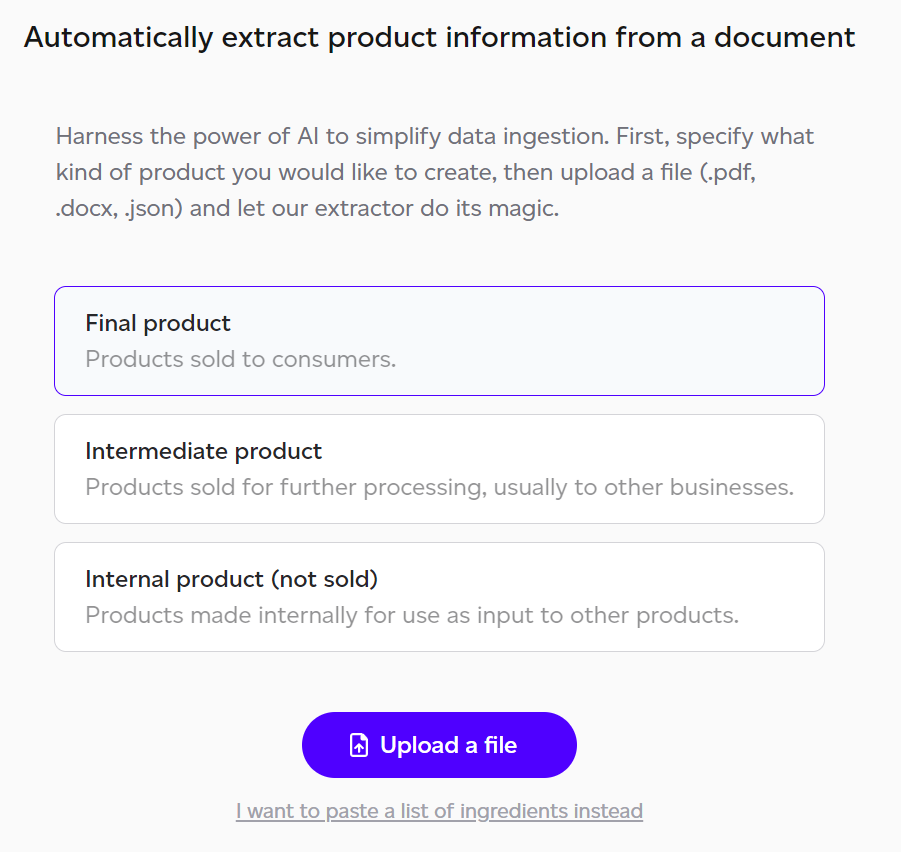
- Choose the Product Type: Indicate whether you're creating a final, intermediate, or internal product.
- Upload a File: Select a file to upload: PDF, Word (.doc, .docx), Excel (.xls, .xlsx), PowerPoint (.ppt, .pptx), OpenDocument (.odt, .ods), .rtf, an email (.msg, .eml) or .json.
- Paste Ingredients: You may alternatively paste an ingredients list directly by selecting 'I want to paste a list of ingredients.'
The specification template
The Import page offers Download the product specification template, a Word document to fill in and upload. Any specification can be imported, but the closer a file is to the template, the less you have to correct on the review screen. It asks for what the import reads: ingredients and amounts, packaging and its materials, the supplier of each ingredient and packaging line, the manufacturing steps, the outer case and pallet with the pallet's uses, the manufacturer and site, origins, and the countries the product is distributed, sold and eaten in. Version 1.2 added the Supplier column to the ingredient and packaging tables and the Pallet uses field. Send it to a supplier or co-manufacturer to fill in, or use it for your own products. The link disappears once an upload starts.
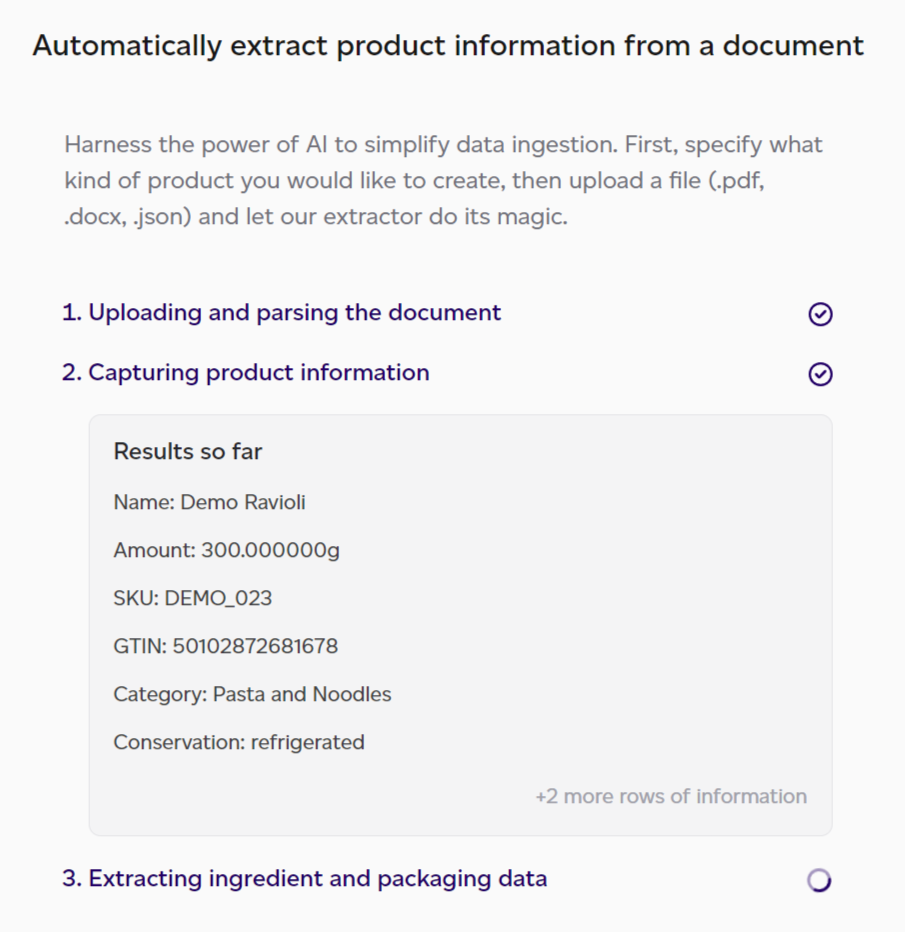
Once uploaded, the AI engine processes the document through multiple iterations to ensure accurate data matching, which may require some time.
After extraction completes, a mapping screen displays for reviewing and confirming data accuracy, with options to fill any gaps. Where a field shows a value in grey, such as the manufacturing facility's name (suggested from the provider's name), that is a suggestion: press Tab to accept it, or type your own.
On that screen, look out for:
- Suggested amounts. Where the document names an ingredient but not how much, the amount is estimated from typical recipes for that kind of product, scaled to fit the amounts the document does give, and marked Suggested. A banner says how many there are, and the Ingredients section opens so you can check them. Type your own figure to replace one.
- Regional origins. If the document gives a region rather than a country ("EU origin", "South East Asia"), the origin is set to that region; pick from Regions (country unknown) in the origin field to set one yourself. Facility locations stay countries. An origin you confirm on this screen is yours: it is not marked DEFAULT on the product.
- The supplier of each line. Every ingredient and packaging line has a Supplier field, filled from the document where it names one. It searches your suppliers; a name you do not have yet is offered as a new supplier, marked New, and creating the product adds it once, however many lines name it. A note under the status line lists the suppliers it will add. Cleared, the line takes your Default supplier. A role that cannot add suppliers, such as an LCA expert, sees those lines marked Not added: they take the Default supplier.
- Who you buy it from (purchased goods). The provider name and ID, the manufacturing facility and its address are filled in from the document. The facility address is taken only from a stated manufacturing site, never a head office. If the document gives only the supplier's own address, it is offered with Use it rather than filled in, because that is not always where the product is made.
- Packaging materials. Each packaging line shows the document's wording (for example "APET-PE (rPET) plastic") beside the Material it was matched to, chosen among the materials of that packaging type. Change it if it is wrong. Left empty, the field reads Type default and the type's default material is used. Changing the line's packaging type clears a material the new type does not offer. A packaging line also finds its type more reliably when its name carries more words, such as "Base tray, APET plastic".
- Production steps. The manufacturing steps the document lists, each beside the process matched to model it. Change a process, or clear it to skip the step. Receiving, ambient storage and dispatch are skipped, and so is packing, which is modelled from the product's packaging. The kept steps are added to the production facility in order, marked as from the specification, with a note of its wording. If you skip them all, or the document lists none that match, the product gets the typical steps for its category.
- Transport packaging (products you sell). The outer case and pallet the document describes. Leave them out, or check the case material, case weight, units per case and cases per pallet (leave that empty for no pallet). If the stated case weight includes the products, their weight is taken off; if no weight is given, a standard case weight is used. A specification never gives a pallet's weight, so the pallet is a standard wooden EUR pallet of 25 kg. Pallet uses shows once there is a pallet: the number of trips it makes, from the document where it says so. Left empty, the default for its type applies, 25 uses for a wooden pallet (50 for a plastic one), so a pallet is spread over its trips rather than charged to one.
- Who makes it (sold and internal products). The Manufacturer section names the manufacturer the document gives and says whether it looks like your own company. Choose Made by us or Made by a co-manufacturer: nothing is chosen for you, and the product cannot be created until you do.
- Made by us: the product is placed at your own production facility in the manufacturing country. A site named in the document picks between your facilities there, or names a new one.
- Made by a co-manufacturer: its name, facility and address are filled in from the document, as a provider's are. The product is placed at the co-manufacturer's facility and is still yours: an internal product made this way stays under Internal products. See Made or bought.
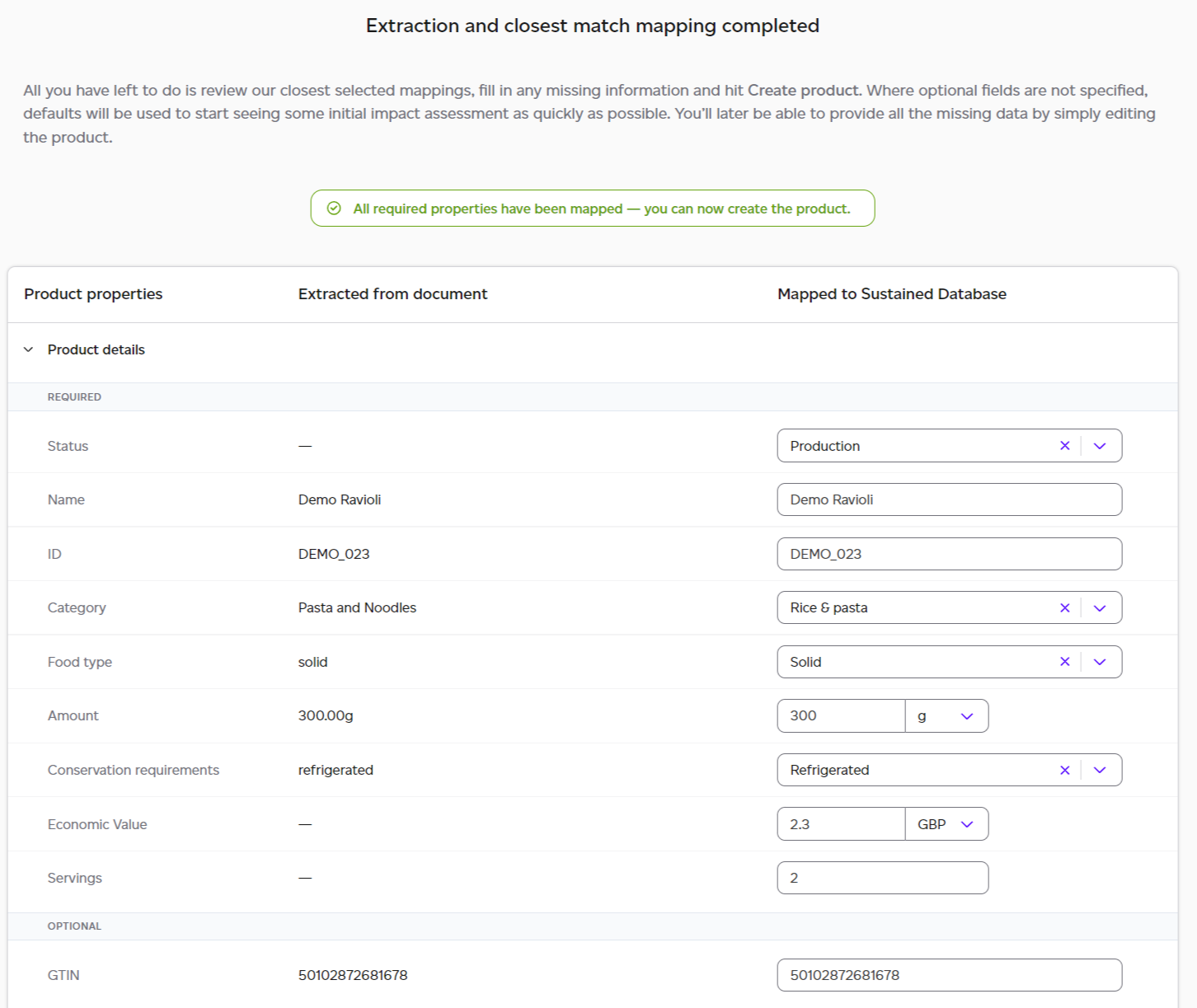
The AI extracts the essential required information for product creation, encompassing:
- Generic product information: name, ID, category, conservation details, number of servings (for final and intermediate products), etc.
- Ingredients: amounts, supplier and country of origin.
- Packaging: type, material, amounts, supplier and country of origin.
- Production steps: the manufacturing steps, matched to processes.
- Transport packaging: the outer case and pallet, with the pallet's uses, for products you sell.
- Countries: production, distribution, retail and consumption.
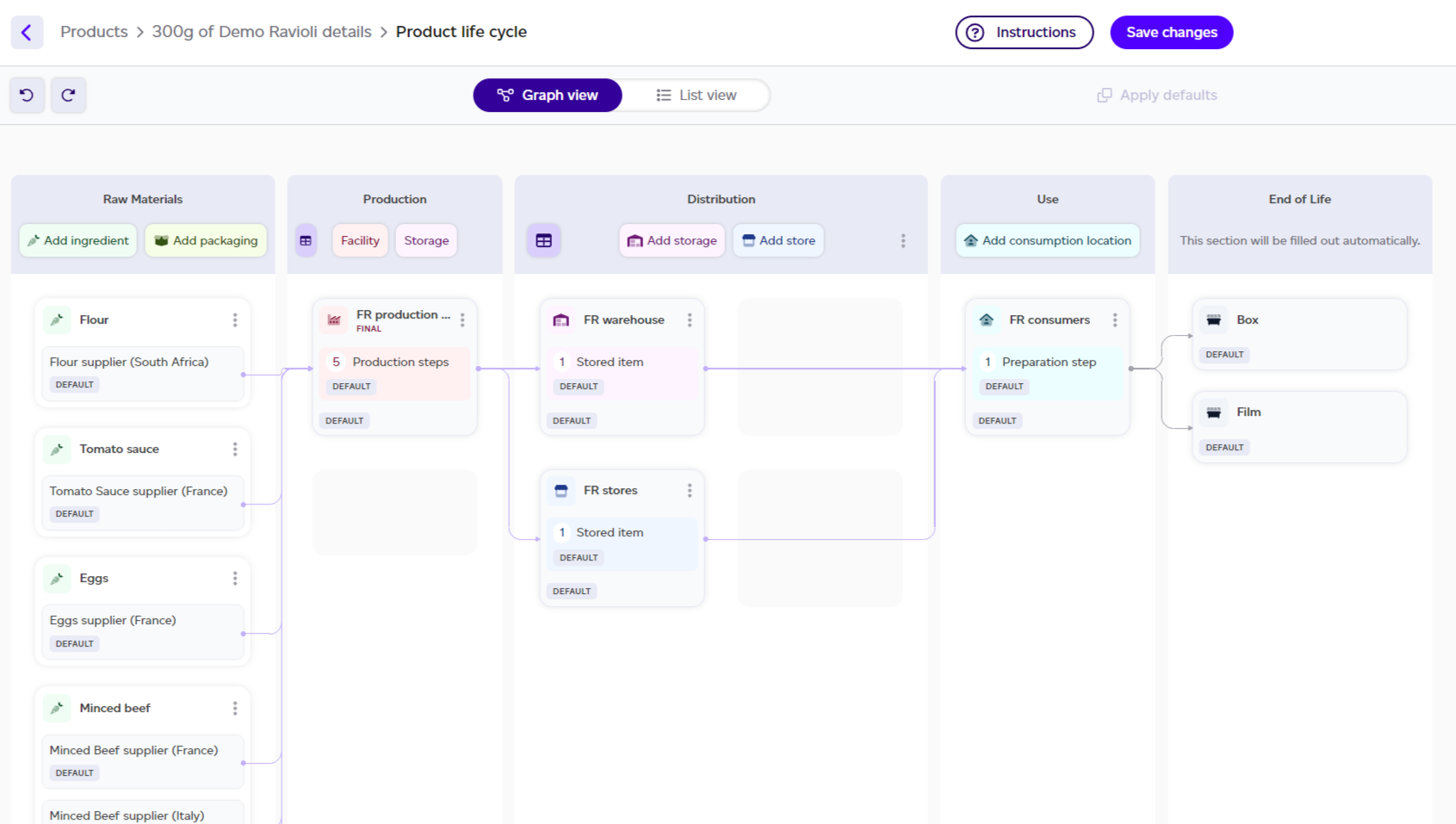
Following validation, you're directed to the product graph where default data can be replaced with actual lifecycle details.